Documentation
Everything you need to get started, integrate, and get the most out of Topogy.
Okta Group Sync
Okta Group Sync lets Topogy read your Okta group memberships and use them to drive role assignment automatically. Without this integration, SSO still authenticates your users and creates their accounts on first sign-in (JIT), but no group information is carried over — admins assign roles per-user inside Topogy.
SSO is a prerequisite. Complete the Okta SSO setup before following this guide.
How it works
Group Sync uses a separate OIN API Service Integration — distinct from the OIDC app that powers SSO. The API Service integration authenticates as a machine identity (not a user) and calls the Okta Management API to read which groups exist in your Okta tenant and which users belong to them. Topogy uses that data to pre-populate the group-to-role mapping picker in your admin settings.
Once groups are synced, a Topogy admin maps each Okta group to a Topogy role. From that point on, a user's Topogy role is derived from their Okta group membership — no per-user role assignment needed.
Prerequisites
- Okta SSO for Topogy is already configured (guide).
- You have Okta Super Admin access, or Organization Admin access with permission to create API service integrations.
- Your Topogy contact has confirmed your organization is ready for group sync.
Configuration steps
1. Add the Topogy API Service Integration in Okta
-
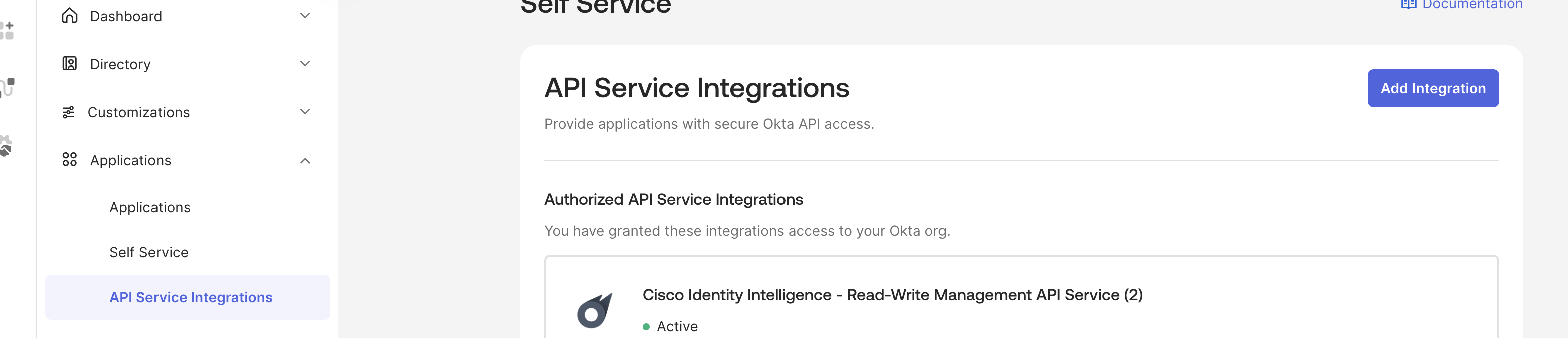
In the Okta Admin Console, open Applications → API Service Integrations.
-
Click Add Integration.
-
Search for Topogy, and select it once found.
-
Click Next at the bottom of the page.
-
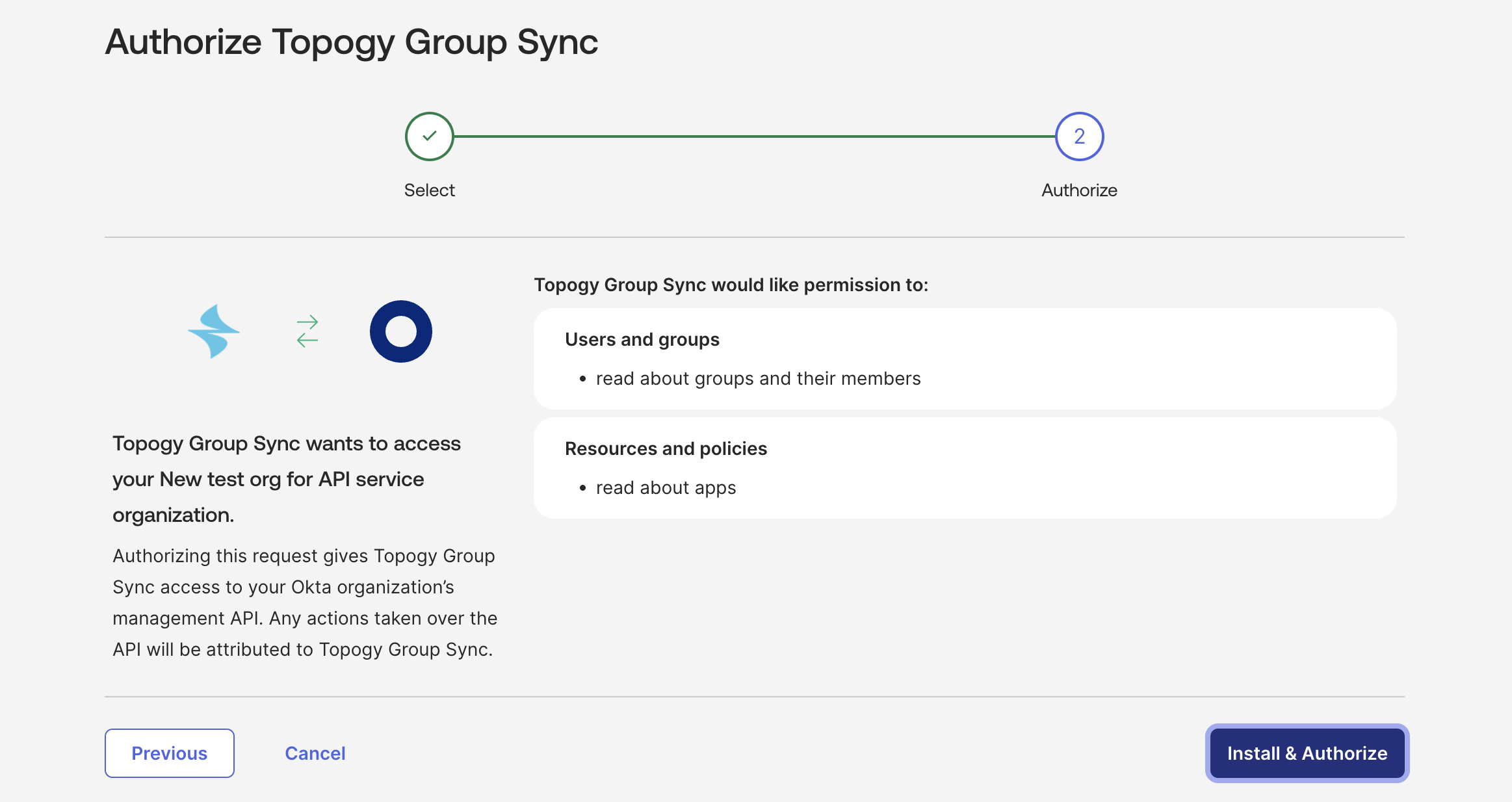
Review the permissions and click Install and Authorize.
-
Once authorized, Okta will display your Client Secret.
-
Copy this immediately, and click Done.
This API Service Integration is separate from the Topogy OIDC app you installed for SSO.
2. Review the requested scopes
At the Install and Authorize step above, Okta lists the permissions the integration requests. These map to two read-only OAuth 2.0 scopes:
okta.apps.read(shown as "read about apps") — allows Topogy to read which Okta applications exist and their group assignments.okta.groups.read(shown as "read about groups and their members") — allows Topogy to read group memberships.
No write scopes are requested or required. Topogy only reads from Okta.
3. Copy credentials into Topogy
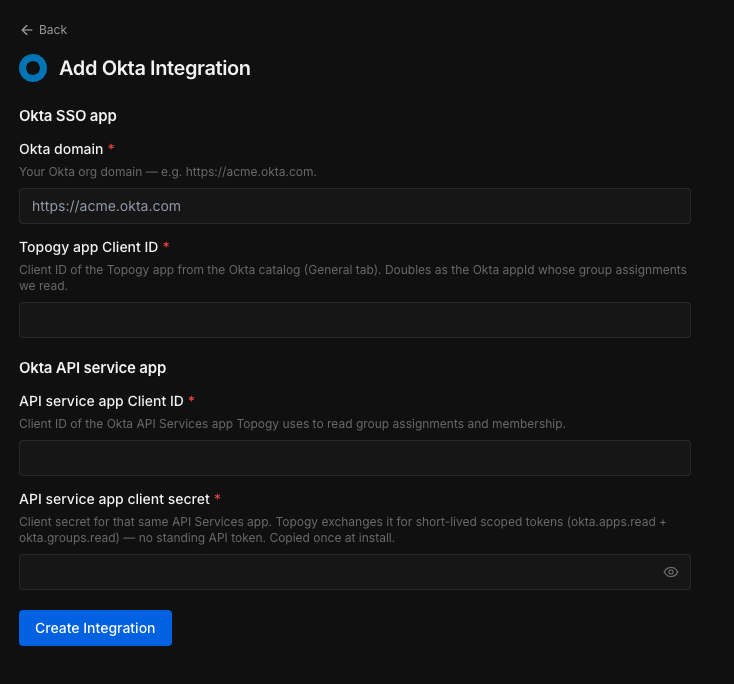
To finish, provide four values to Topogy. The API Service client secret is the one you copied at step 7 above (Okta shows it only once — generate a new one if you didn't capture it).
| Value | Where to find it |
|---|---|
| Okta domain | Your Okta tenant URL, e.g. https://yourcompany.okta.com |
| Topogy OIDC app Client ID | On the Topogy OIDC app you installed for SSO → General tab in Okta |
| API Service client ID | On the Topogy API Service integration → General tab in Okta |
| API Service client secret | Shown once at install (step 7 above); generate a new one if you missed it |
The OIDC app Client ID and the API Service client ID come from two different Okta apps: the OIDC app authenticates your users for SSO, while the API Service integration is the machine identity Topogy uses to read group data. Topogy reads group assignments from the OIDC app, so it needs that app's Client ID to know which application's groups to fetch.
In Topogy, go to Settings → Integrations → Okta Group Sync and enter these four values. Topogy will verify the connection and begin syncing group data.
4. Map groups to roles
Once the sync completes, go to Settings → Group Mappings in Topogy. The picker shows the Okta groups that are assigned to your Topogy OIDC application. Select a group and assign it a Topogy role. Repeat for each group you want to map.
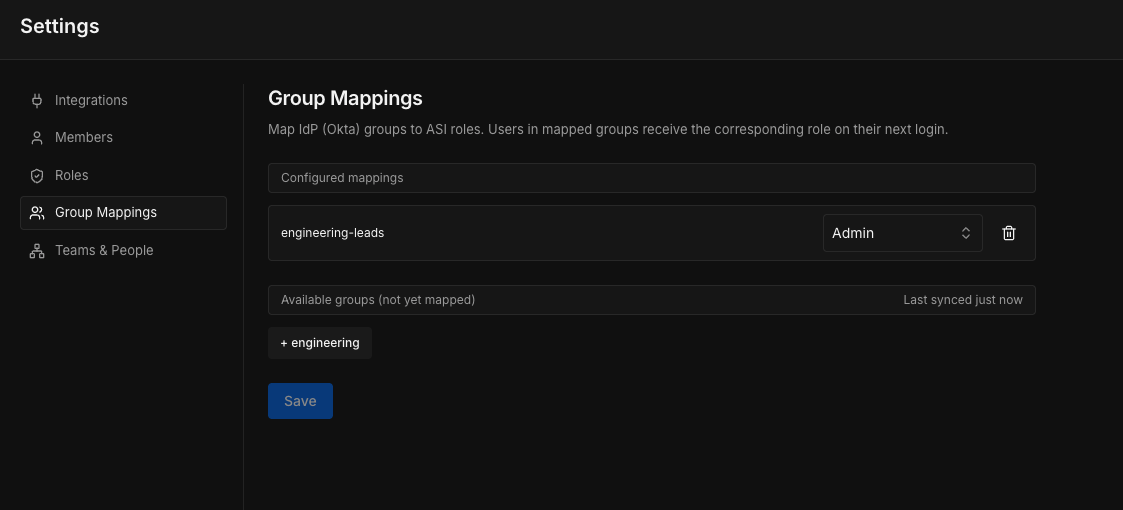
Group-to-role mapping is managed entirely inside Topogy — there is nothing to configure in Okta beyond the scopes above. You can update mappings at any time; changes take effect on the user's next sign-in.
Troubleshoot
- No groups appear in the Group Mappings picker — confirm that the Okta groups you want are assigned to the Topogy OIDC application (not just the API Service integration) in Okta. Topogy reads app-assigned groups, so a group must be assigned to the OIDC app to appear in the picker.
- Connection verification fails — double-check that both
okta.apps.readandokta.groups.readscopes are authorized for the API Service integration, and that you copied the client secret before navigating away (it cannot be retrieved again — generate a new one if needed). - A user has the wrong role after sign-in — confirm their Okta group membership and that the group is mapped to the intended role in Settings → Group Mappings. Role assignment refreshes on each sign-in.
- Anything else — reach out to your Topogy contact or email support@topogy.com with the Okta System Log entry for the relevant event.