Documentation
Everything you need to get started, integrate, and get the most out of Topogy.
Claude Enterprise
Topogy connects to the Claude Enterprise Analytics API to bring your organization's Claude usage into Topogy: per-developer activity, Claude Code productivity metrics (commits, pull requests, lines of code), and actual cost under your Enterprise contract. Connecting takes one API key, created in your claude.ai Enterprise admin console.
This integration applies to organizations on the claude.ai Enterprise plan. It complements the Claude Code telemetry integration — analytics data covers your whole organization with up to a year of history, including periods before telemetry was enabled.
Prerequisites
- Your organization is on the claude.ai Enterprise plan (not Teams).
- The person creating the key is a Primary Owner of your Claude organization. No other role — Owner or Admin — can create analytics API keys. You can check your role under Claude's organization settings, or ask an existing Primary Owner to run the steps below.
Creating the Analytics API key
-
As a Primary Owner, go to claude.ai/analytics/api-keys (Analytics → API keys in the Claude sidebar).
-
Under Analytics API, turn the Access toggle on. If this toggle is off, every API request is denied — including requests using keys created earlier.
-
Click + Create key and copy the key. Keys carry the
read:analyticsscope automatically; there is nothing else to configure.
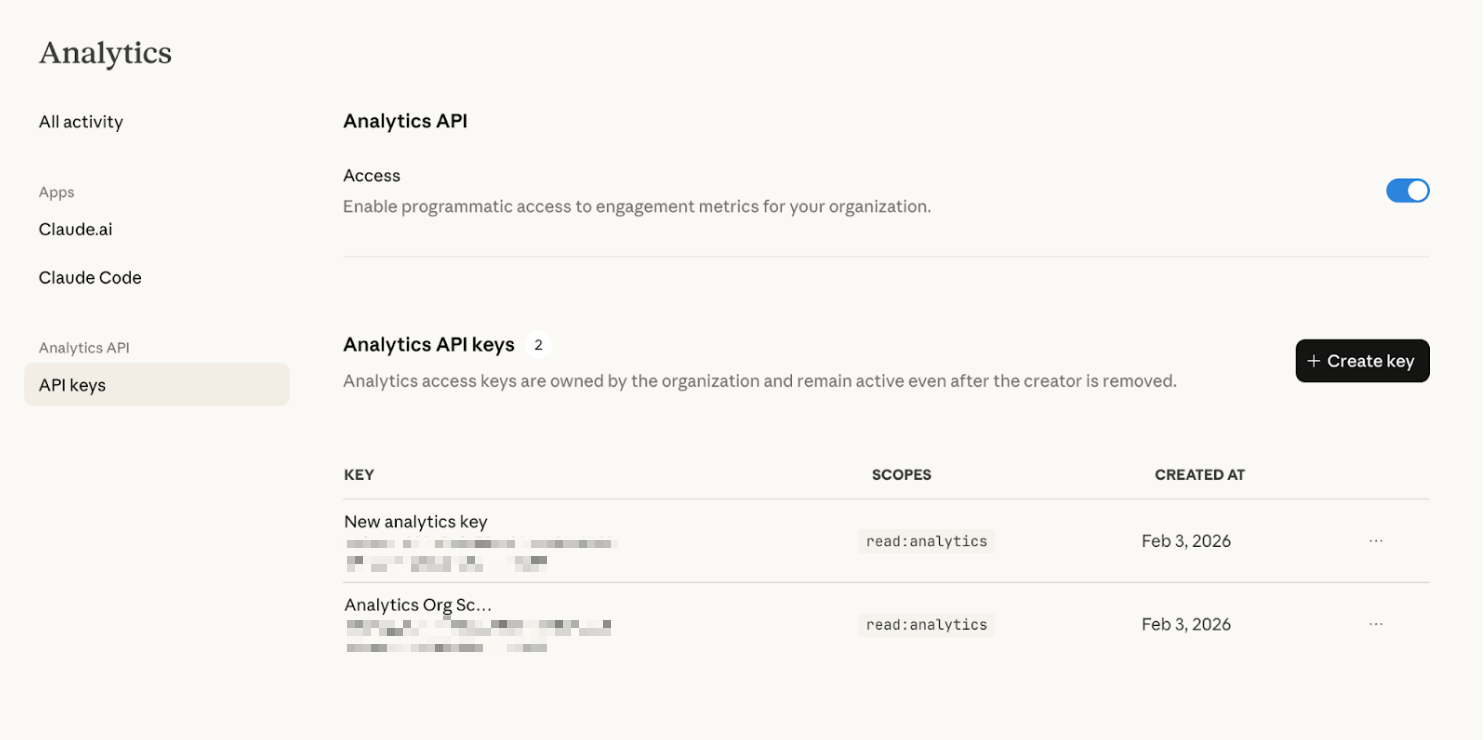
A few things worth knowing about these keys:
- Keys are owned by the organization and remain active even if the person who created them leaves.
- You can create multiple keys; rate limits apply per organization, not per key.
- You can revoke API access at any time by turning the Access toggle off.
- Treat the key like a password — it grants read access to your organization's usage and cost data.
Anthropic's own walkthrough is at Get started with the Claude Enterprise Analytics API.
Add the integration in Topogy
- In Topogy, go to Settings → Integrations and choose Claude Enterprise Analytics.
- Paste the API key and save. Topogy verifies the key immediately and never displays it again.
- On success the integration shows as active, and Topogy begins reading your organization's analytics.
Troubleshooting
If verification fails with a rejected-key message, check in order:
- The Access toggle under Analytics API is on.
- The key was copied completely, with no surrounding whitespace.
- The key was created by a Primary Owner of the organization you expect the data to come from.
Data freshness comes from Anthropic's side of the API: engagement metrics trail real time by about three days, and cost data by up to a day. This is normal and applies to all consumers of the Analytics API.
For help during setup, reach out to your Topogy contact or email support@topogy.com.