Documentation
Everything you need to get started, integrate, and get the most out of Topogy.
Datadog
Topogy has an integration with Datadog which enables us to understand your usage, how it affects cost, and correlate it with overall platform spending. In order to take advantage of these capabilities, you need to grant the Topogy app access on Datadog, then enable the Datadog integration in Topogy.
Topogy is in an ongoing process to integrate with Datadog and become part of Datadog's Network Partner. In the meantime, while this process isn't finished, the access to your instance is done using a combination of API and Application Keys.
Below, you can see instructions for collecting this information and saving it in Topogy.
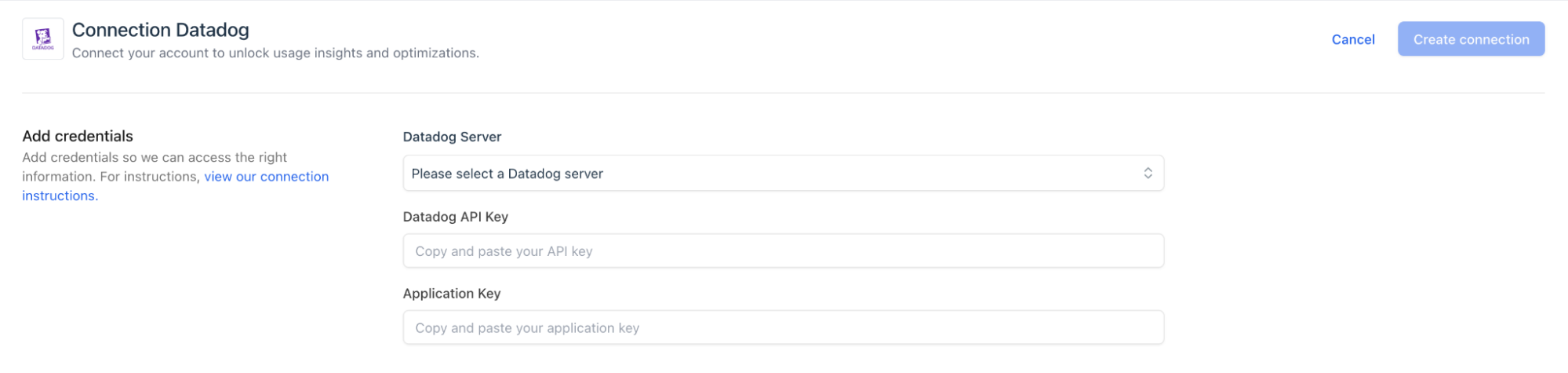
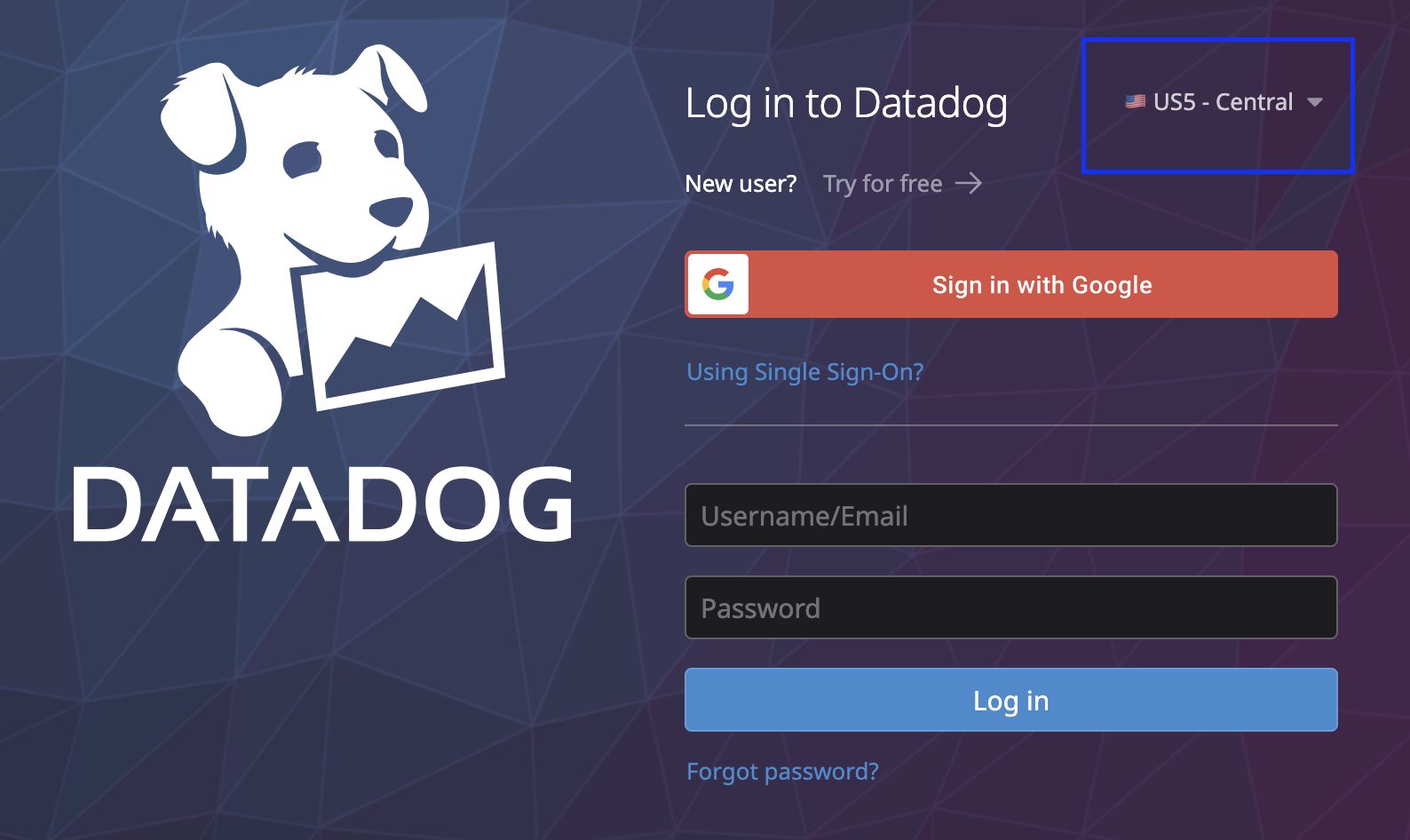
Step 1. Identify your Datadog server
You can check which server your instance belongs to by checking where Datadog connects to before you login.
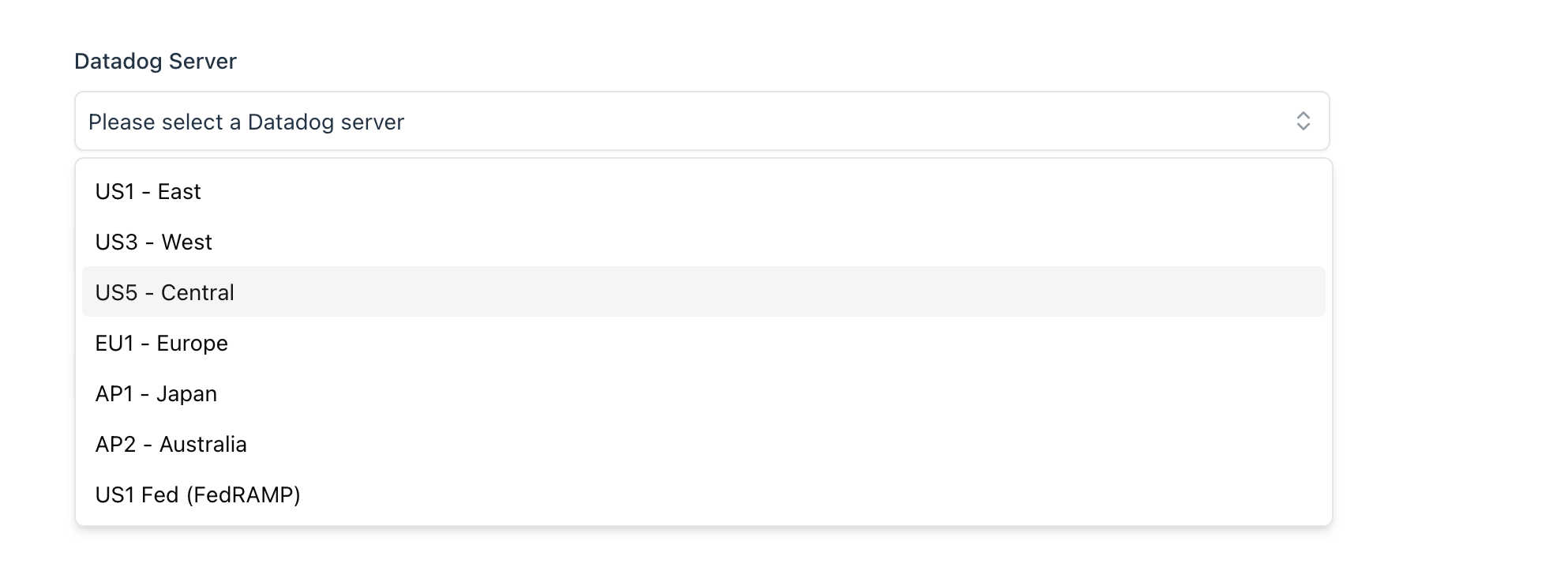
Now go back to Topogy and select your corresponding server from the list:
Step 2. API Key
Create a new API Key
- In Datadog, after logged in, navigate to API Keys by hovering over your username and clicking API Keys
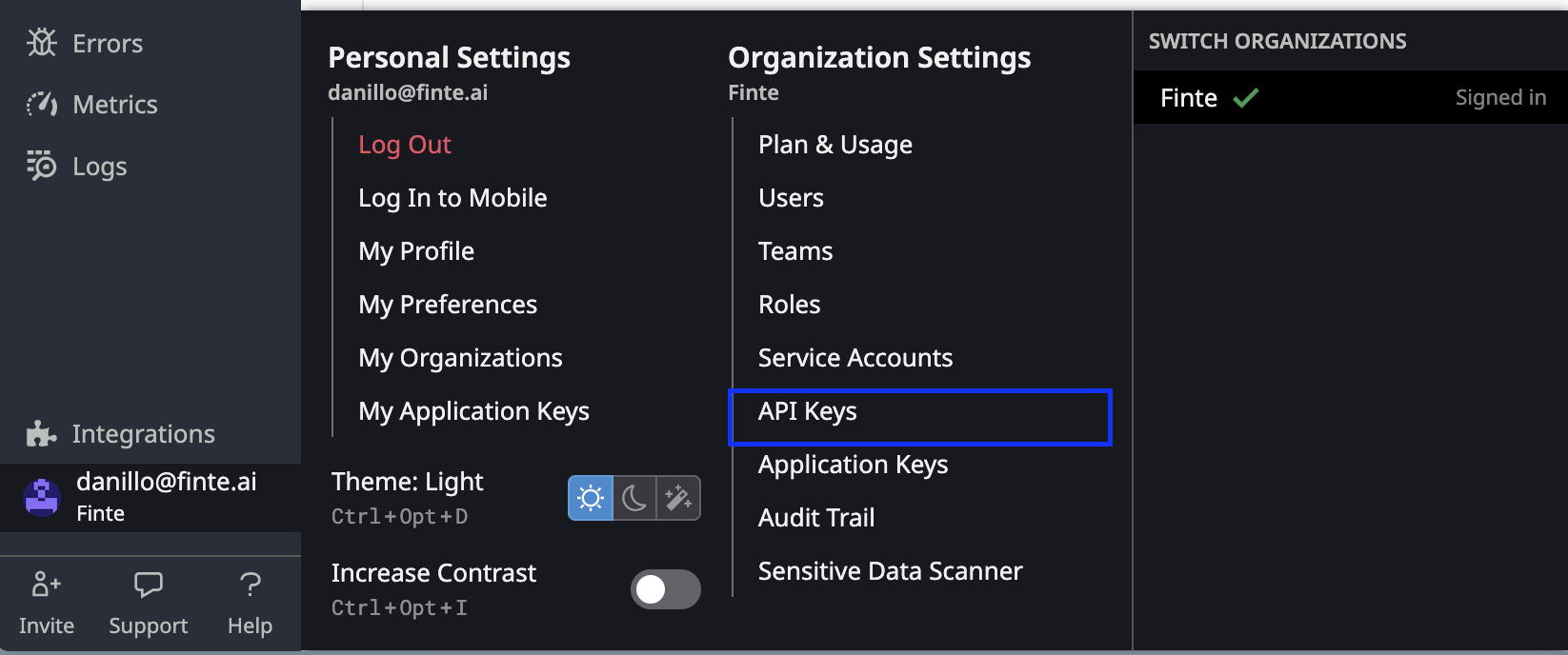
- Click New Key

- Give it a recognizable name, we recommend "Topogy Access". Then click Create Key
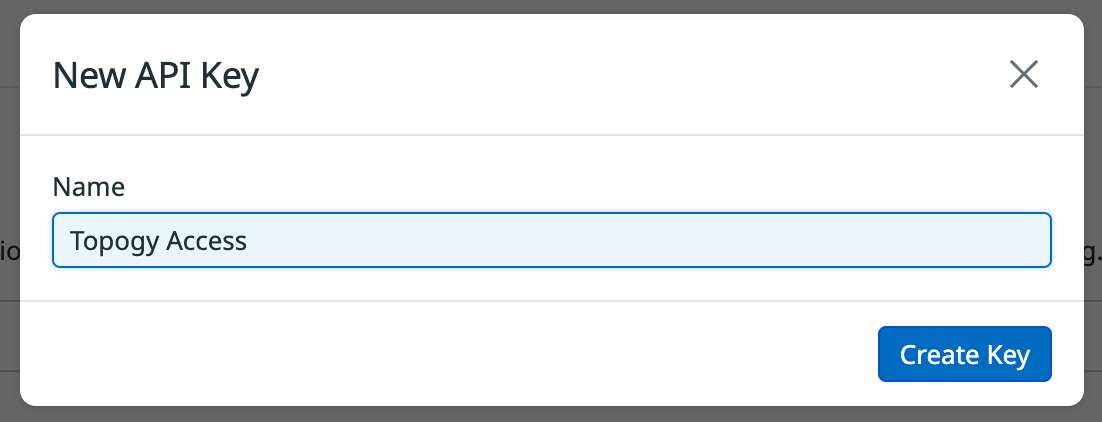
You will land in the a page similar to the following:
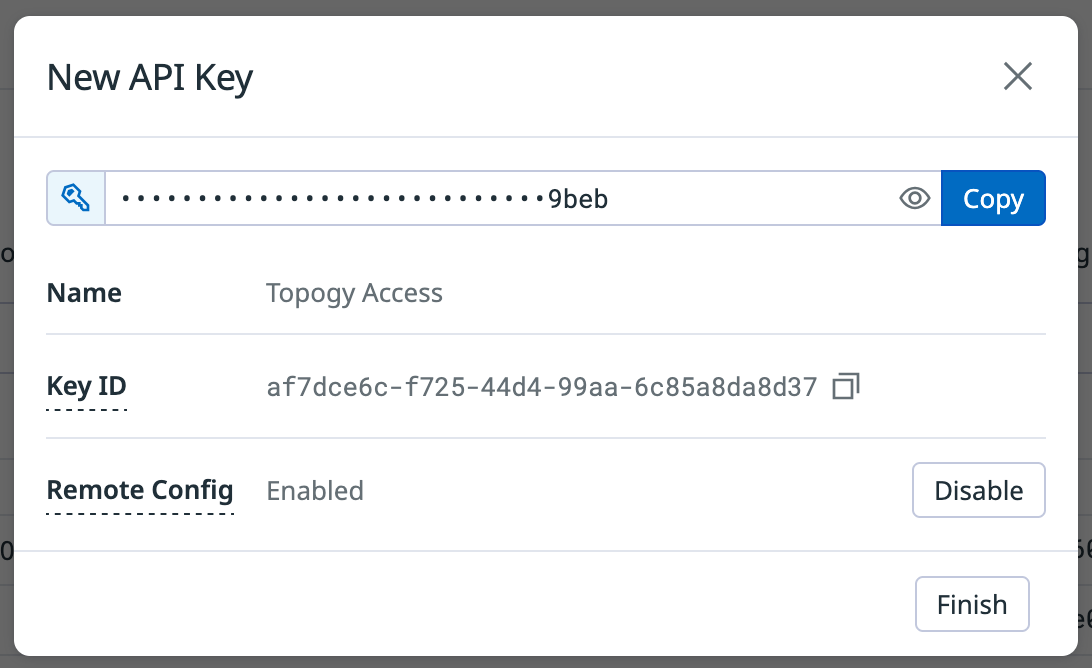
Copy key to Topogy
- Finally, click Copy and then Finish. Back to Topogy, paste your API Key
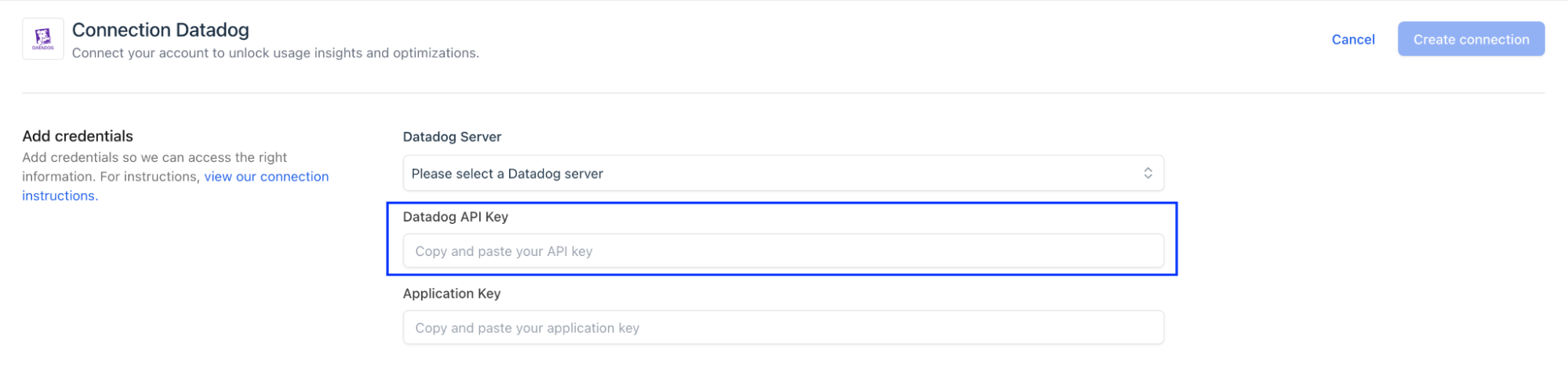
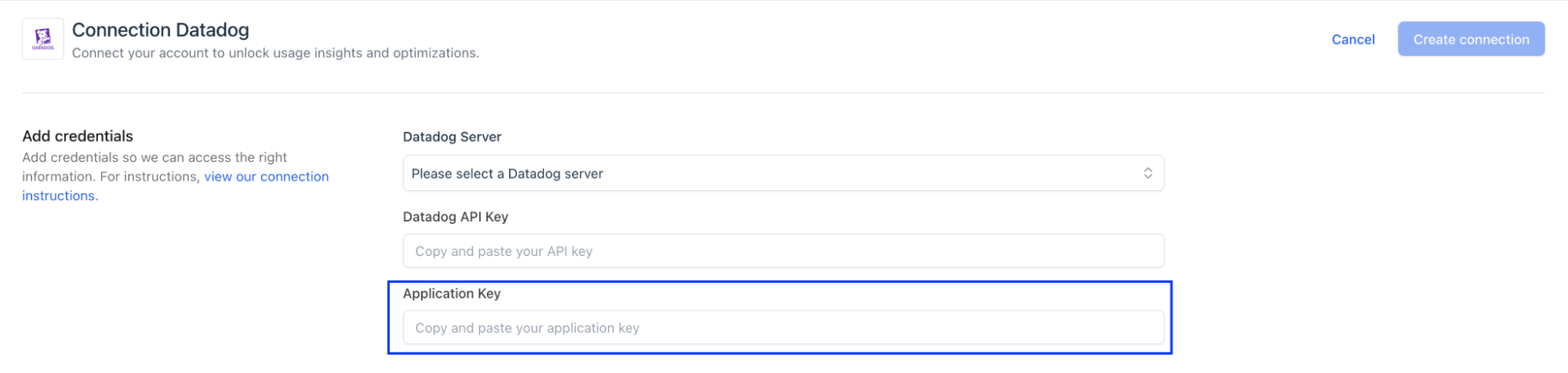
Step 3. Application Key
Create a new Application Key
- In Datadog, navigate to Application Keys by hovering your mouse on your username, then clicking on Application Keys
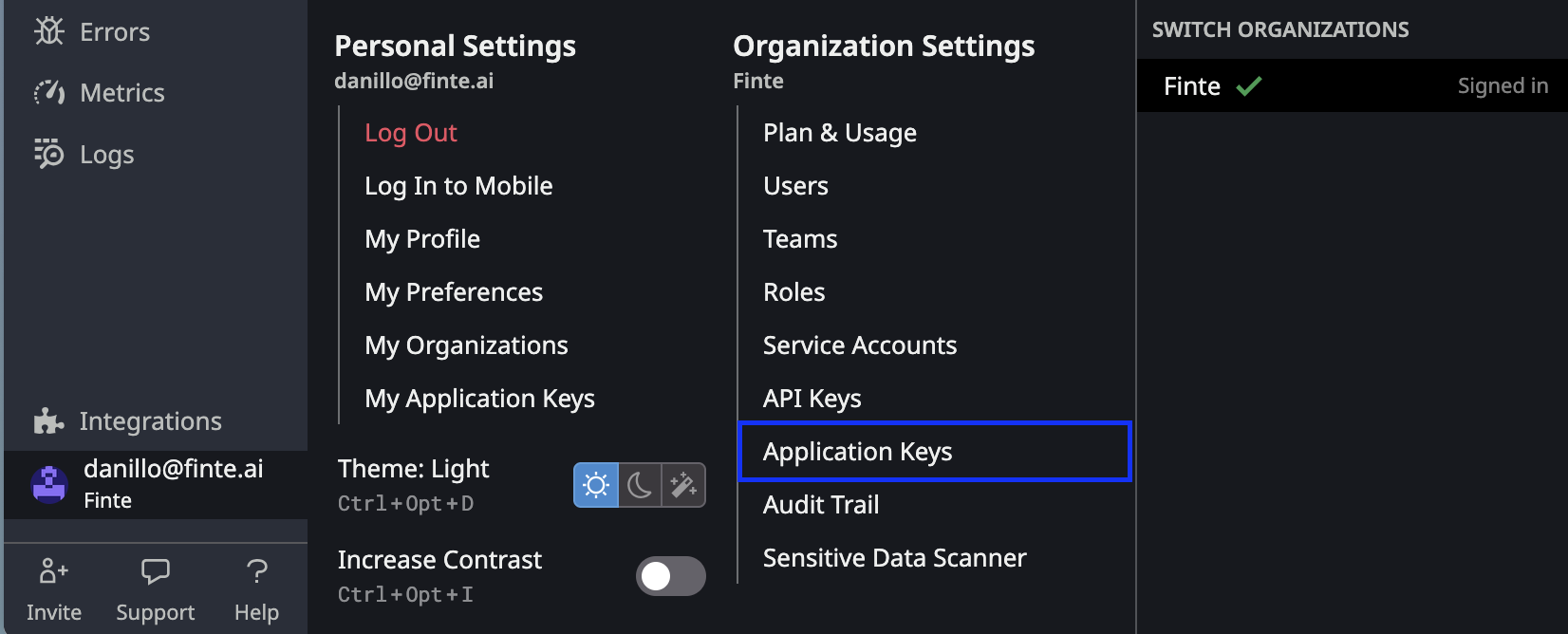
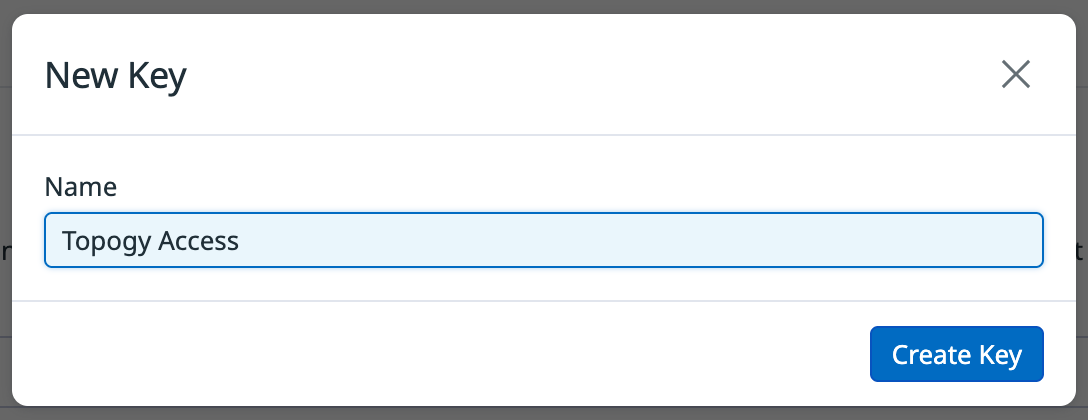
- Click New Key

- Give it a recognizable name (we recommend "Topogy Access") and click Create Key
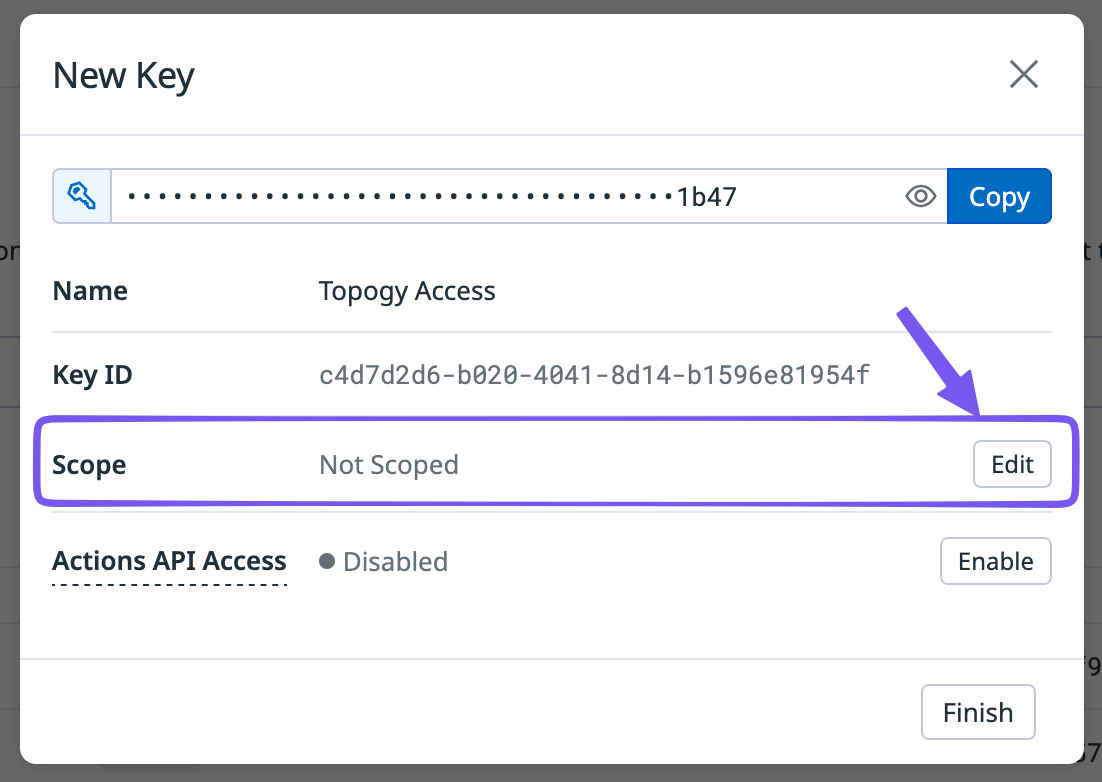
Configure scopes
- Now, next to Scope, click Edit
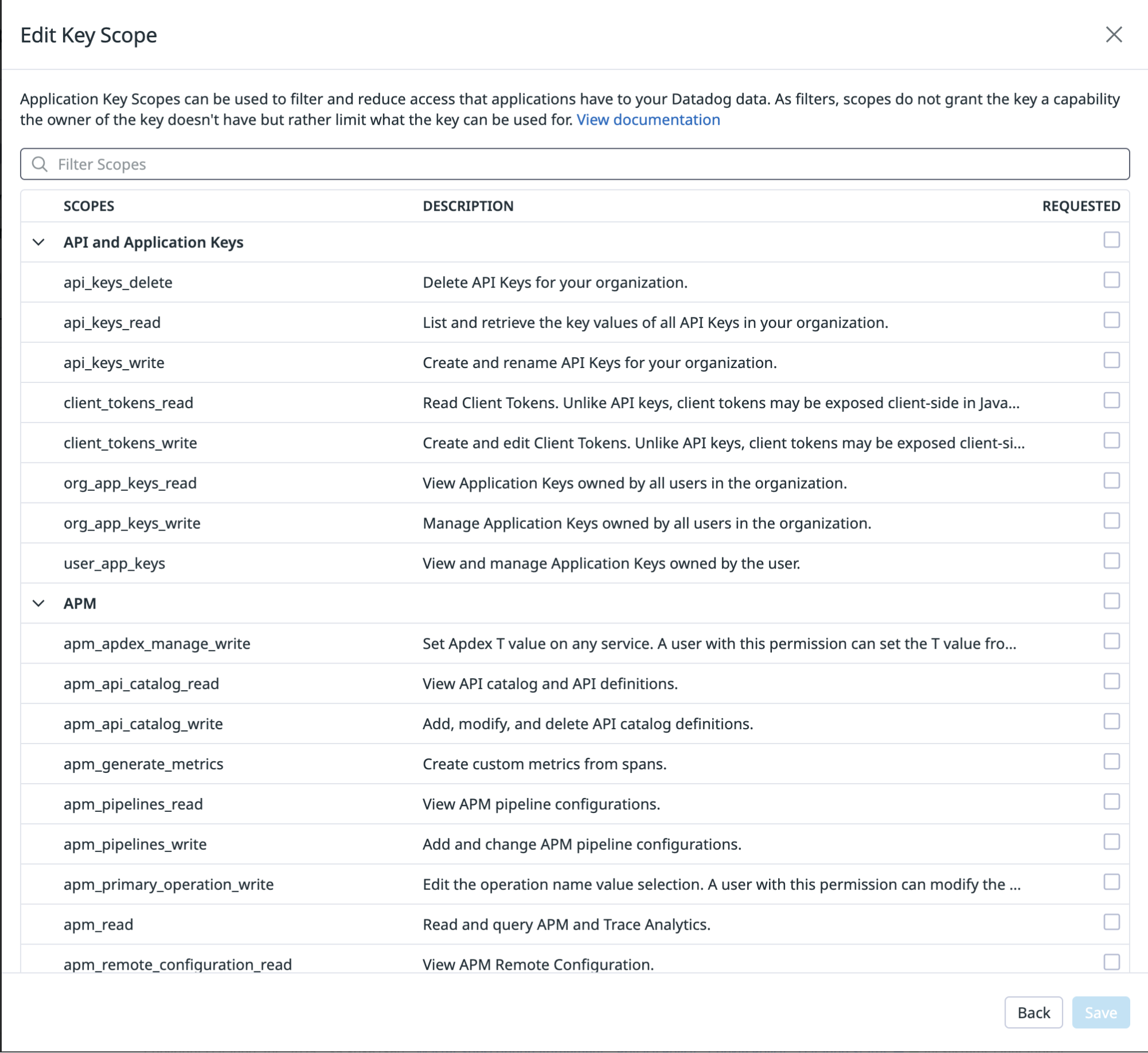
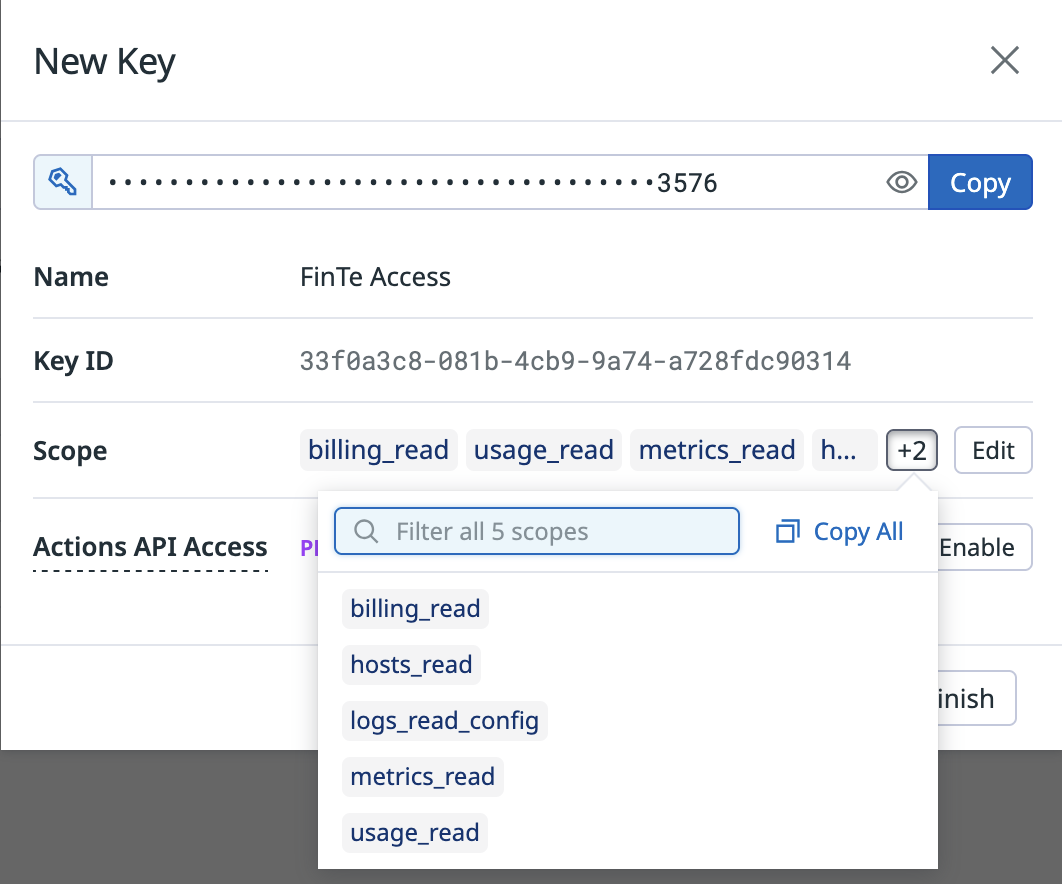
- Now, select the scopes required by Topogy: billing_read, hosts_read, logs_read_config, metrics_read and usage_read
- Once finished selecting the scopes above, click Save. You should see the following scopes selected:
Copy key to Topogy
- There's no need to enable Actions API Access. Click Copy and Finish, then back to Topogy, paste your Application Key
Finish
Finally, in Topogy, click Create Connection
