Documentation
Everything you need to get started, integrate, and get the most out of Topogy.
Linear
Topogy connects to Linear to bring your planning artifacts into the same picture as your code and agent activity. Issues, priorities, and state changes are correlated with the code changes and AI sessions that deliver them, so you can see how work moves from a ticket to a shipped change — and how much of that work AI contributed to.
Prerequisites
Any Topogy user with the Integrations write privilege can connect Linear. This isn't specific to Linear — it's the same privilege required to add or manage any integration, so check your role under Topogy's Settings → Roles if the Connect button isn't available to you.
Connecting Linear
- In Topogy, go to Settings → Integrations and choose Linear, then click Connect to Linear.
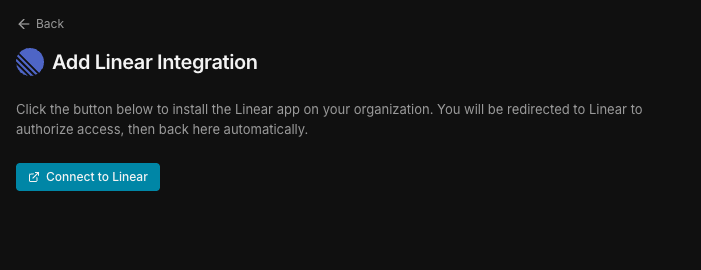
-
Authorize the connection through Linear's OAuth screen.
-
Once authorized, Topogy shows the workspaces and teams available to you. Deselect any you don't want included — deselected teams are excluded from ingestion, and their tickets are never pulled into Topogy.
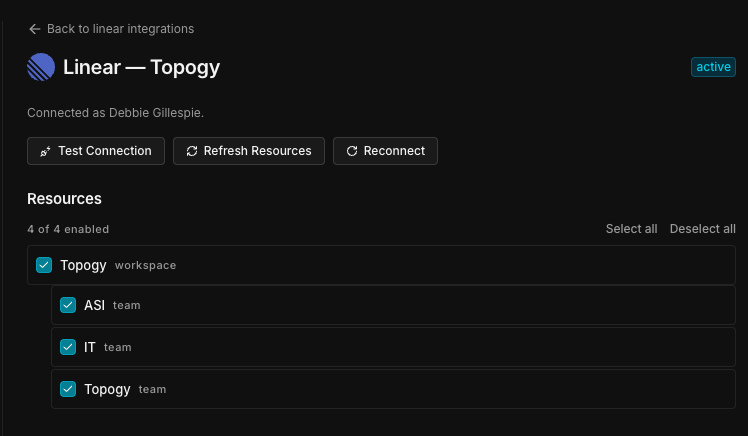
- Save your selection. Topogy begins syncing tickets from the included teams.
What Topogy receives
For each ticket in an included team, Topogy captures its title, description, identifier, priority, and due date; state changes (e.g. moving to in review or closed); relations such as blocked-by; and labels.
What Topogy does with it
Tickets are correlated with the code changes and agent sessions that reference them, so you can trace a feature from its Linear ticket through to the pull requests and AI-assisted work that delivered it — and understand how much of that delivery AI played a role in.
For help during setup, reach out to your Topogy contact or email support@topogy.com.