Documentation
Everything you need to get started, integrate, and get the most out of Topogy.
Initial IAM Role
Overview
In order to analyze your current AWS usage and identify opportunities for cost savings, Topogy needs Read access to your AWS accounts. The following guide provides the information to quickly get your AWS accounts connected by creating an IAM Role in the Management Account along with creating the remaining IAM roles with CloudFormation. Note that you need to be using AWS Organizations to manage your accounts
Note, you will need to get your External ID, which is available in the Topogy console. Each Organization gets a unique External ID that we use to protect against the confused deputy problem.
Initial IAM Role Creation
The steps below outline how to create the IAM Role. Once you have completed the steps, you will have an ARN that you can enter into Topogy.
Create the IAM Role
- Access your Management account
- Access the Roles menu (IAM Dashboard -> Roles)
- Click "Create role" button in upper right corner
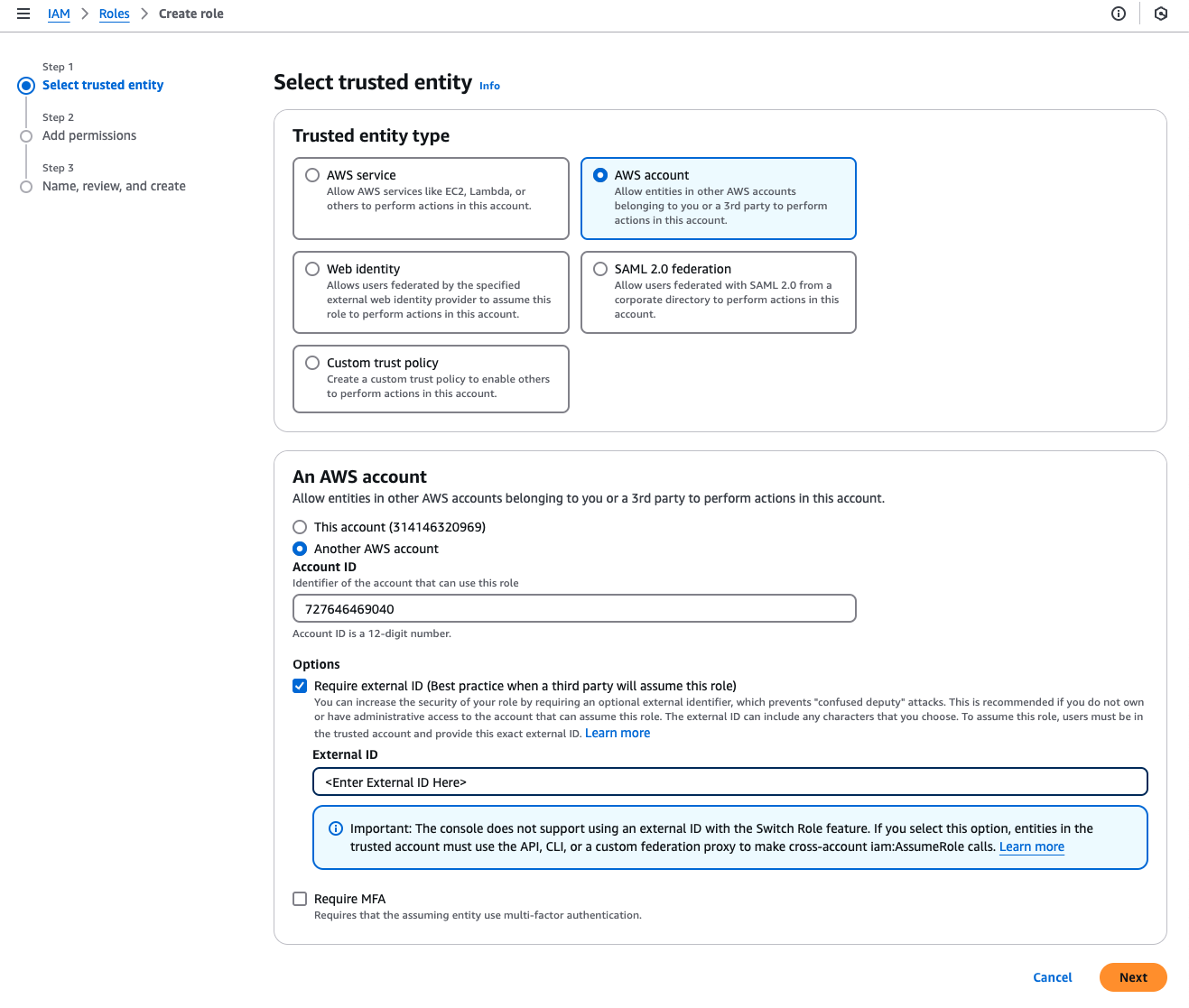
- Select "AWS account"
- Select "Another AWS account"
- Enter Account ID:
727646469040 - Click the "Require external ID (Best practice when a third party will assume this role" box, which will cause the External ID input box to appear
- Enter External ID:
<This comes from the Topogy console> - Click the Next button
Attach permissions
- Add the AWS ReadOnlyAccess Policy (Select "AWS managed - job function" from the Filter by Type drop down menu and enter "ReadOnlyAccess" in the search bar)
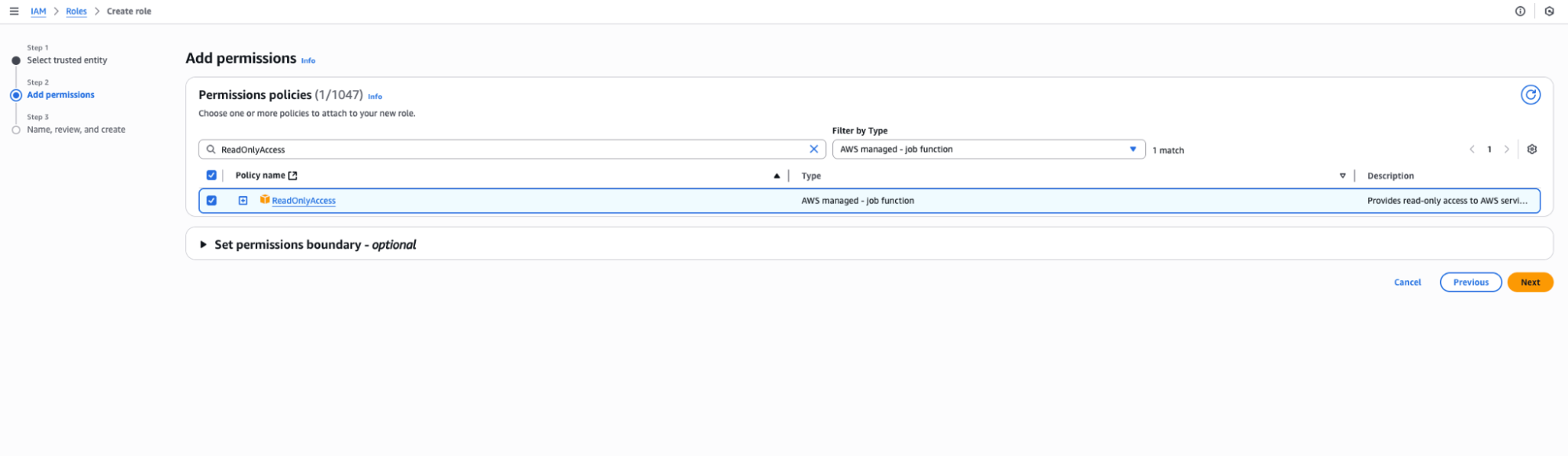
- Click the Next button
Finalize the role
- Give the Role a Name (the name is significant):
TopogyCrossAccountRole - Enter a description if you would like, otherwise, safe to leave blank
- Confirm the ReadOnlyAccess policy is attached under "Add permissions"
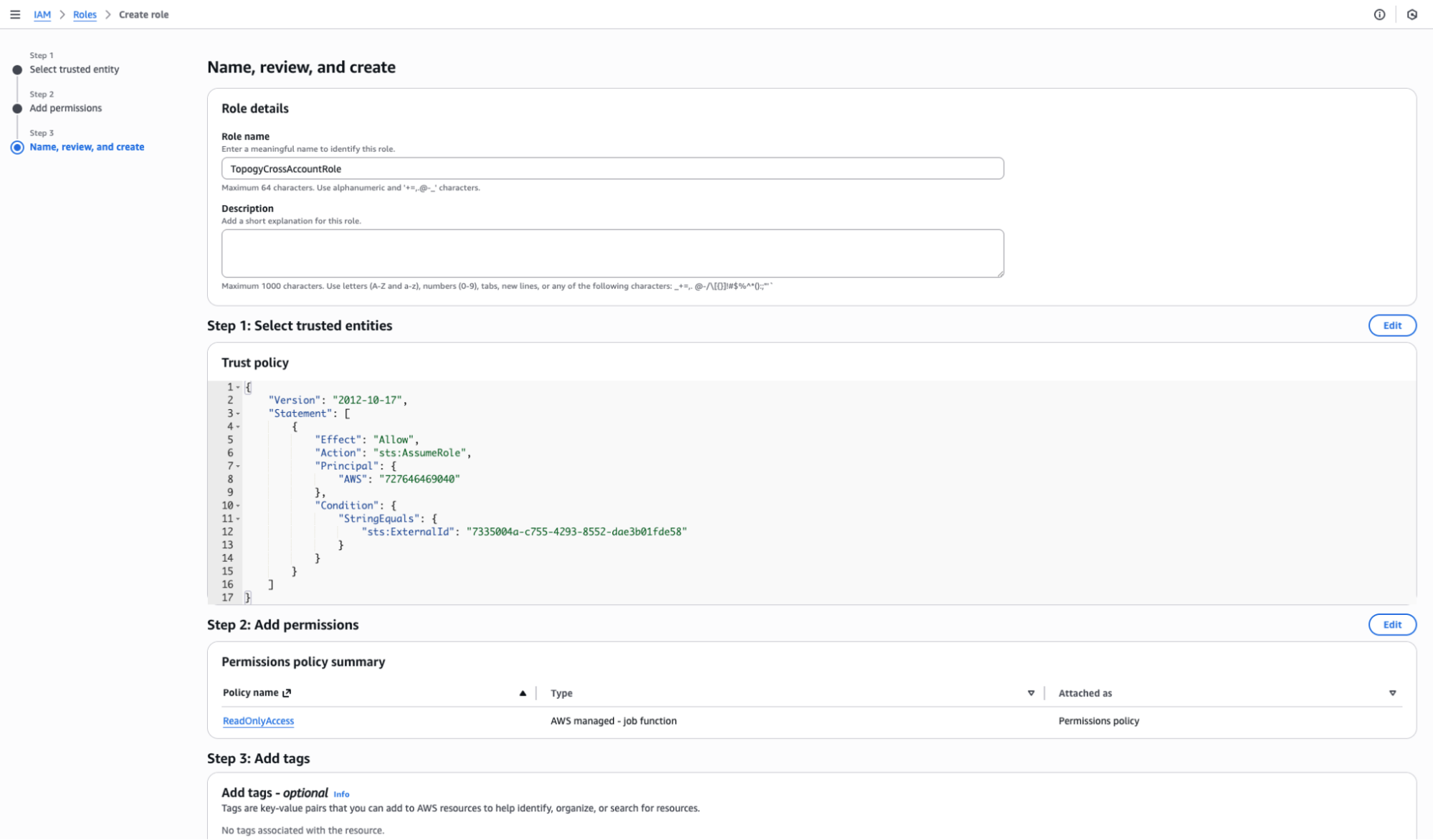
- Click the "Create Role" button
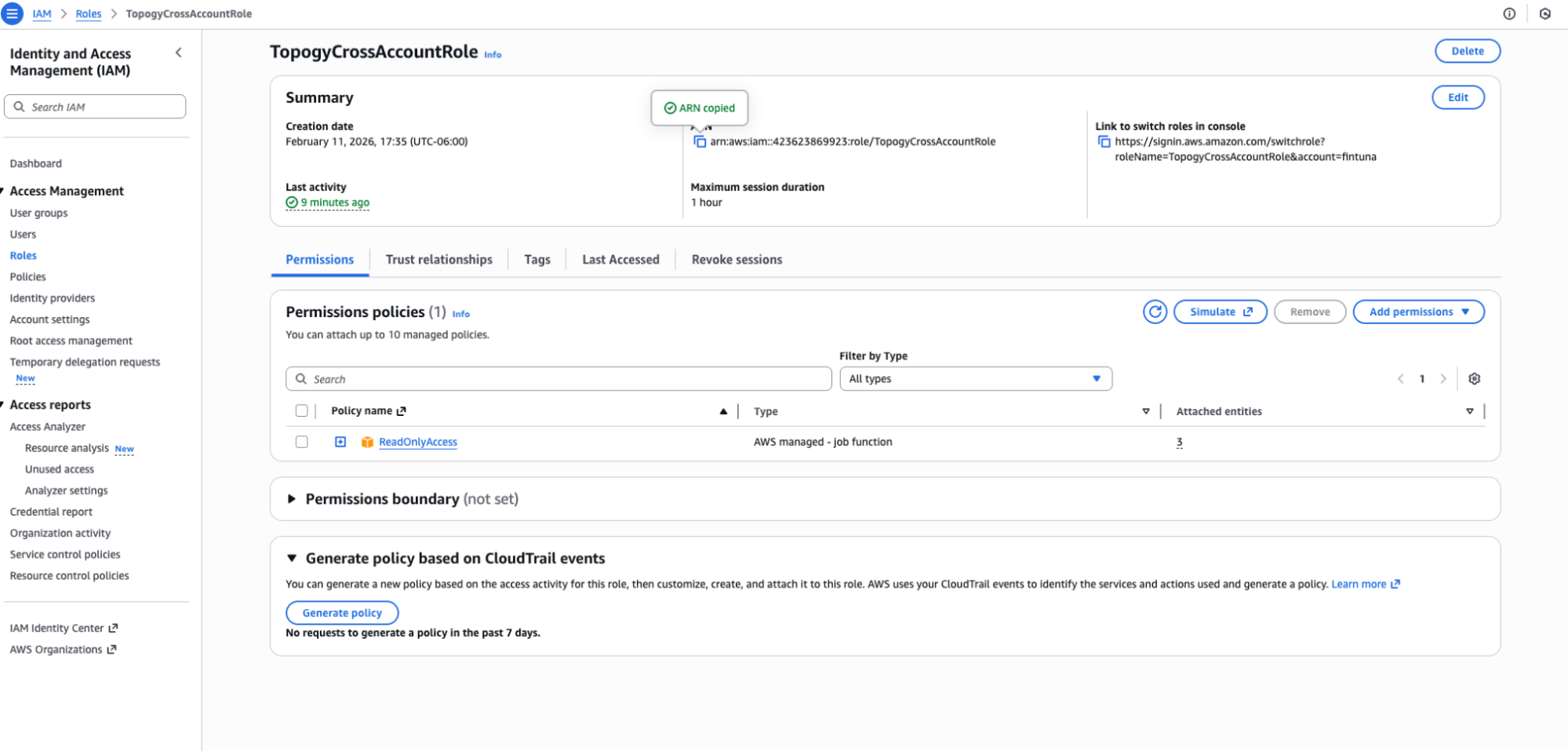
- Click the "View role" button in the success modal that appears

- Copy the Role ARN and enter this in your configuration for your AWS integration
Connect to Topogy
- Enter your ARN in the Topogy Integrations page
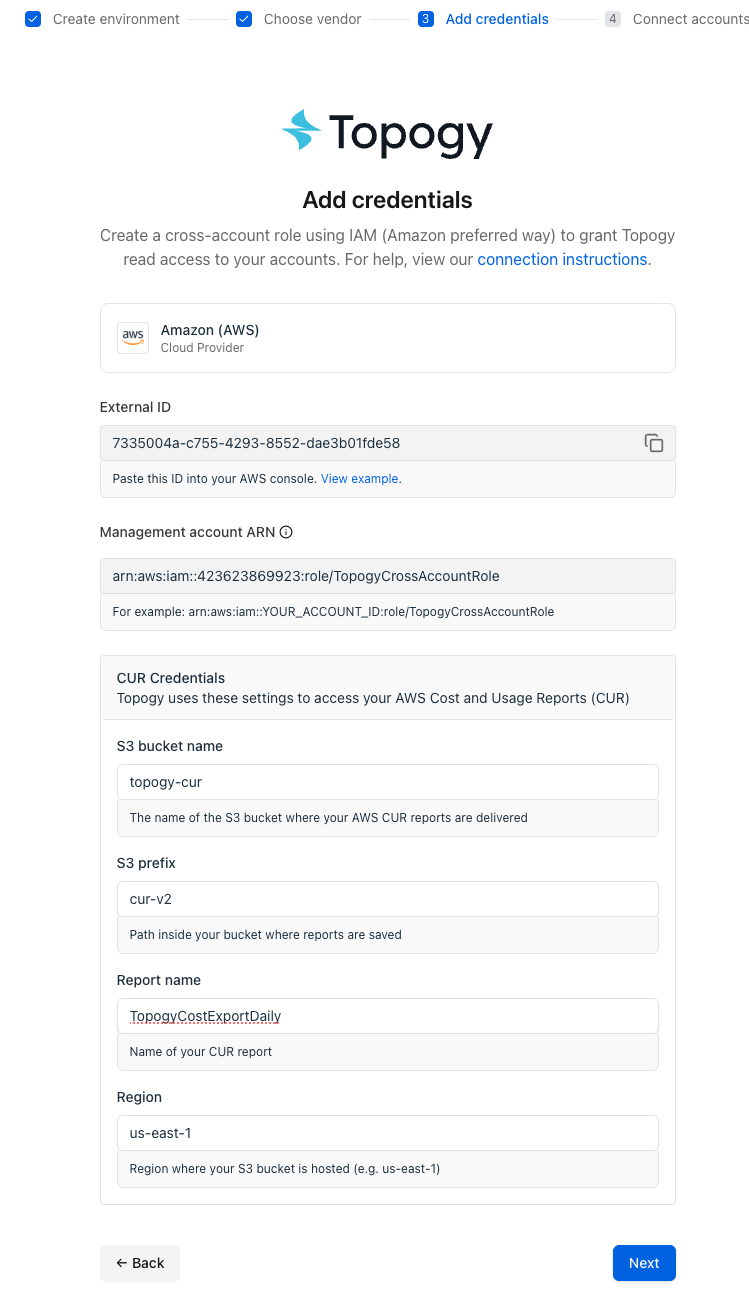
- Note there are pre-filled entries for your CUR Credentials in the form shown above. You will need to follow the instructions in the Cost and Usage Report 2.0 if you have not already configured your AWS account to export billing information to an S3 bucket.
- Click the Next button
- At this point, you should see that we can access your management account, and a list of accounts that are inaccessible because they do not yet have the proper IAM roles. You will need to use a tool such as CloudFormation to get the remaining roles created.
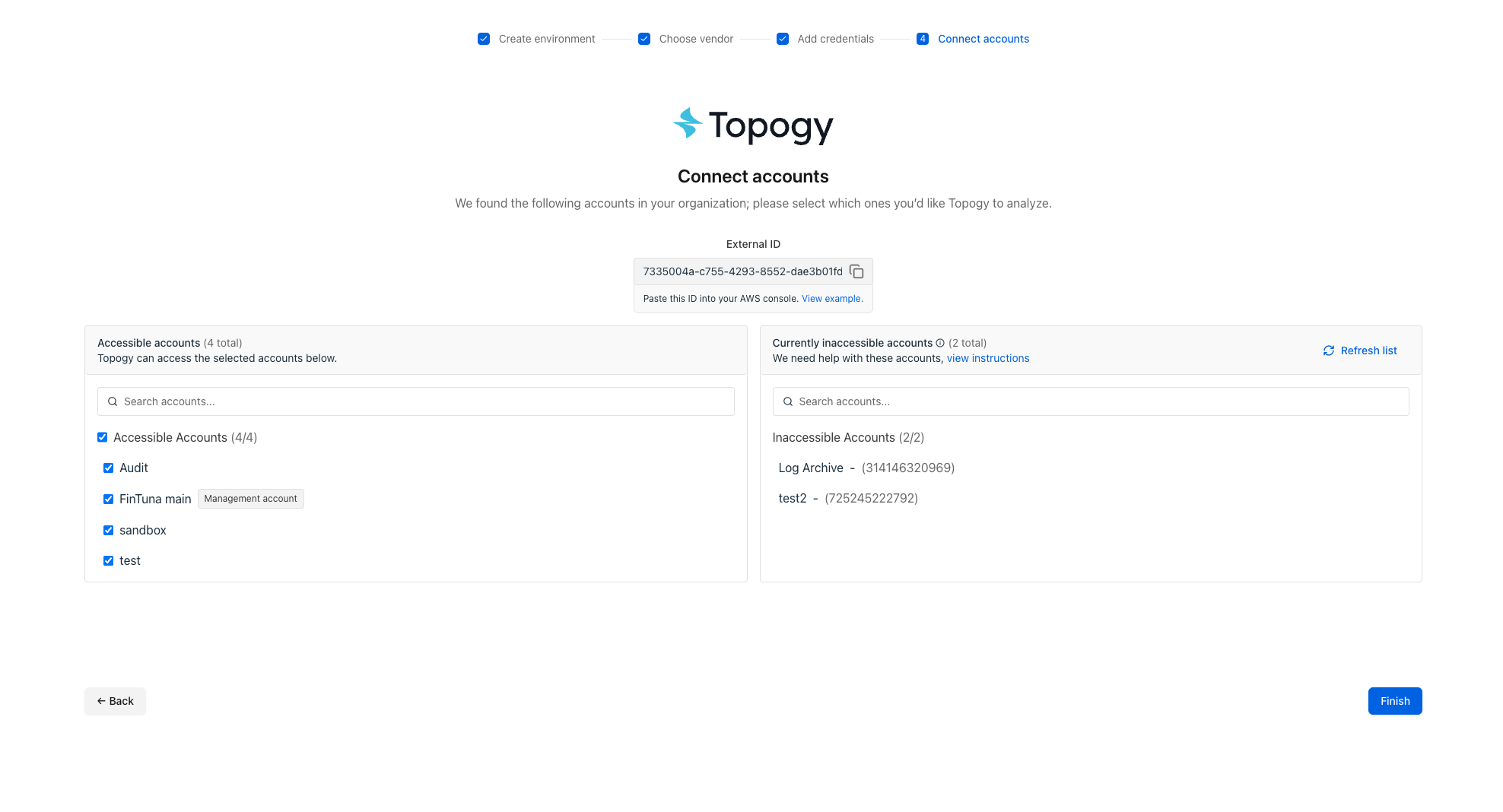
- Continue to the CloudFormation steps.
- Once CloudFormation has finished creating IAM Roles in the remaining accounts, hit the "Refresh list" button. If the IAM Roles have been created successfully, the remaining accounts should move to the Accessible Accounts list. If they are still inaccessible, verify that the TopogyCrossAccountRole IAM Role exists in the inaccessible account and that it has the correct ExternalID and is restricted to the Topogy AWS account:
727646469040.