Documentation
Everything you need to get started, integrate, and get the most out of Topogy.
Resource Level Queries
AWS Usage and Billing is all obtained through their "Cost Explorer" endpoint, which drives their Cost Explorer UI. There is a service/category level API, then a specific API that must be user-enabled to access resource-level cost data. Daily values are free and accessible for 14 days; hourly values are expensive and are a specific other option not required by Topogy.
In addition, Resource Explorer allows you to view all your resources in one place, across all of your regions. This needs to be enabled to allow Topogy to understand and display your resource deployment and associated costs. Enabling this feature is also free.
The following instructions describe how to enable resource level queries in order to make the cost data available for analysis.
Enabling Resource Level queries
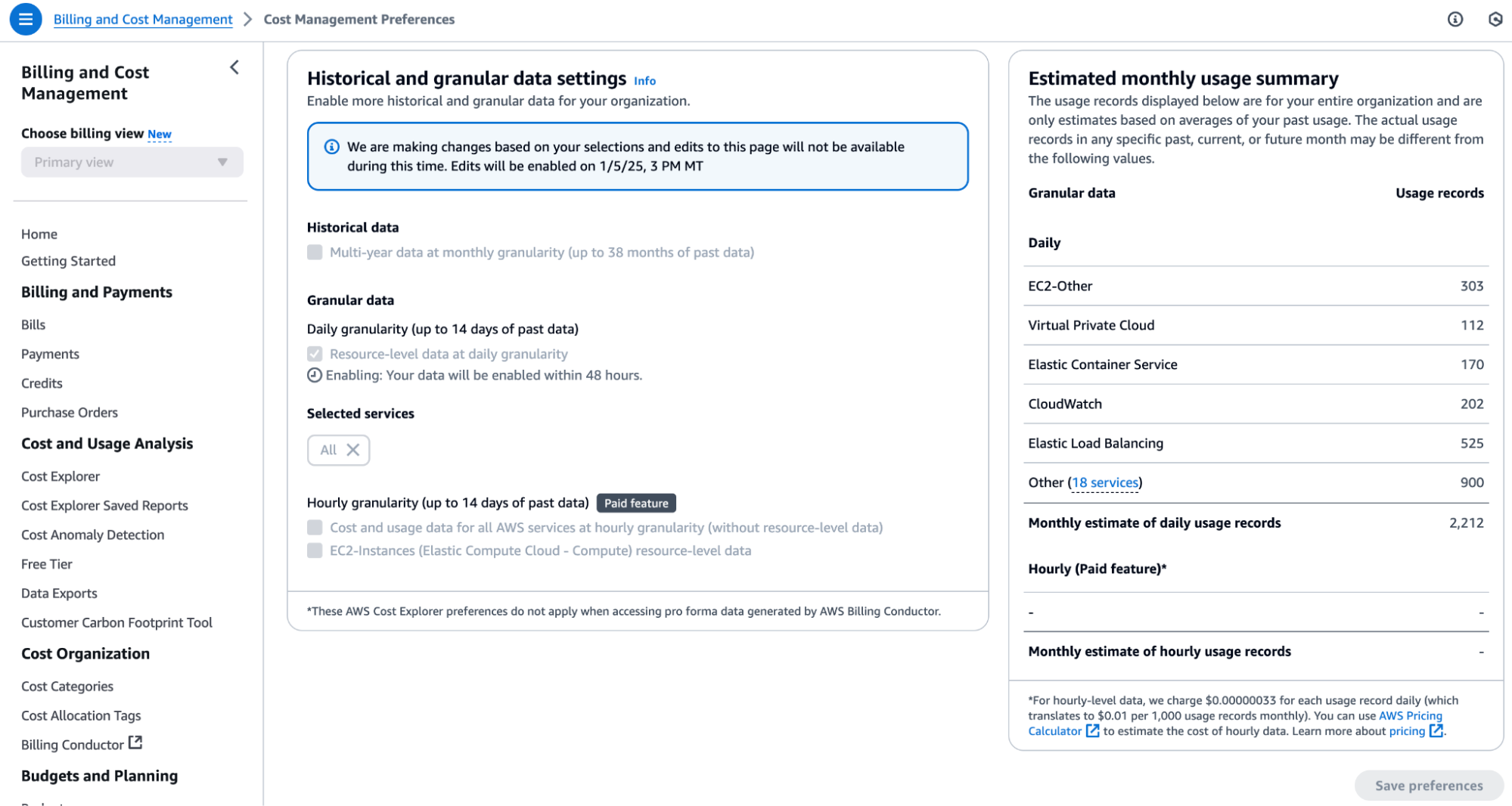
To enable Resource Level queries, you need to go through the cost explorer UI; note that it may take up to 48 hours to populate data:
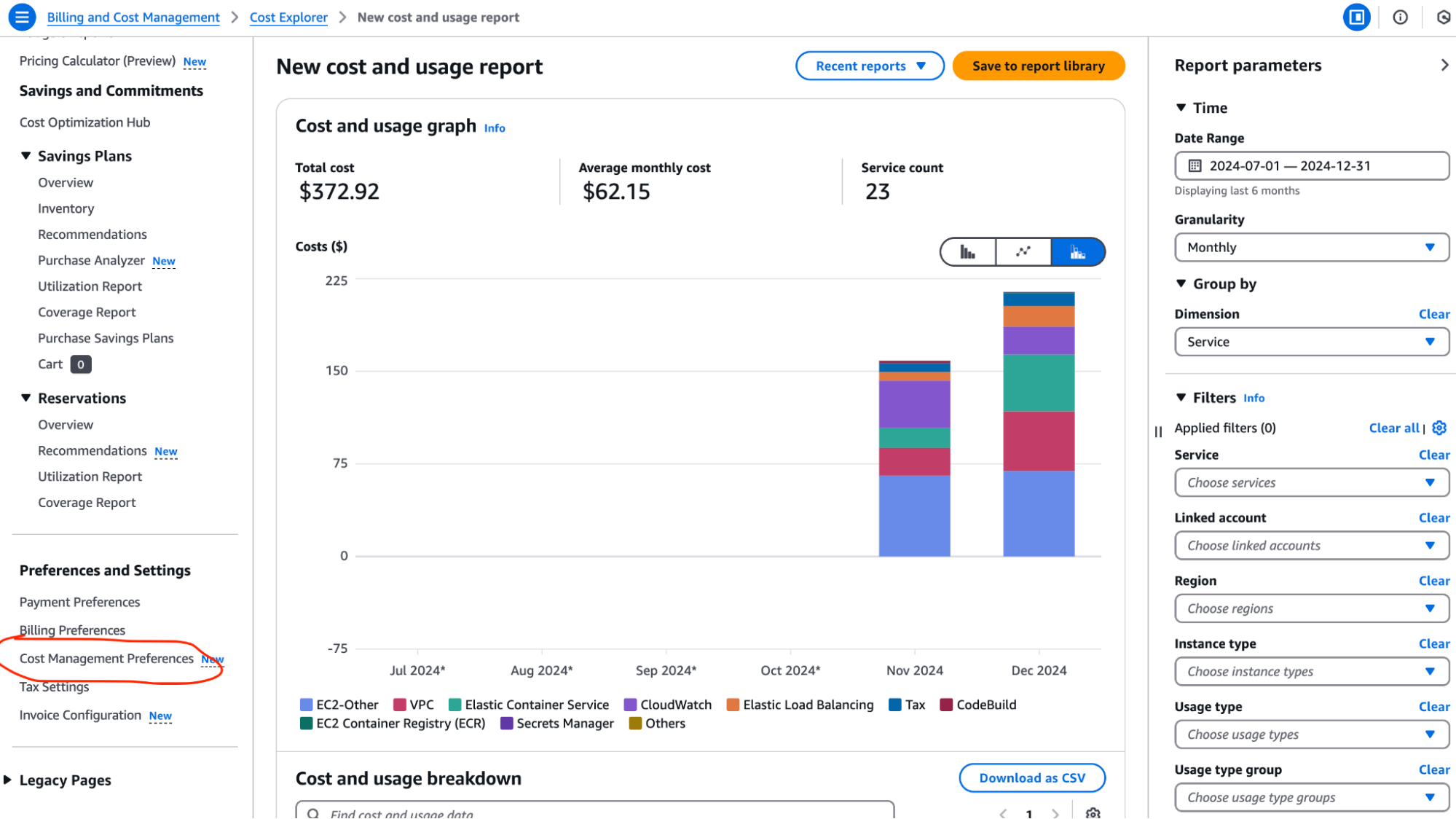
Open Cost Management Preferences
- Access your AWS Management Account
- Open the Billing and Cost Management console at https://console.aws.amazon.com/costmanagement/
- Click on the "Cost Management Preferences" link
Enable resource-level data
- Click on the "Cost Explorer" tab
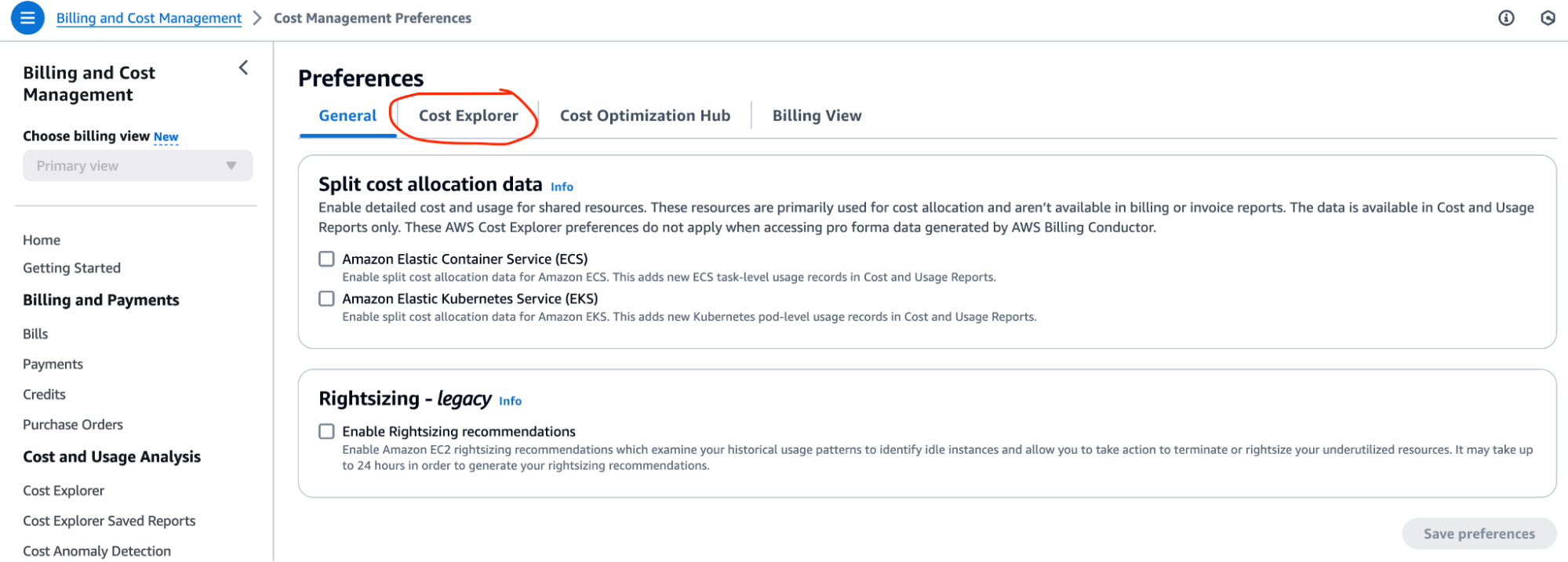
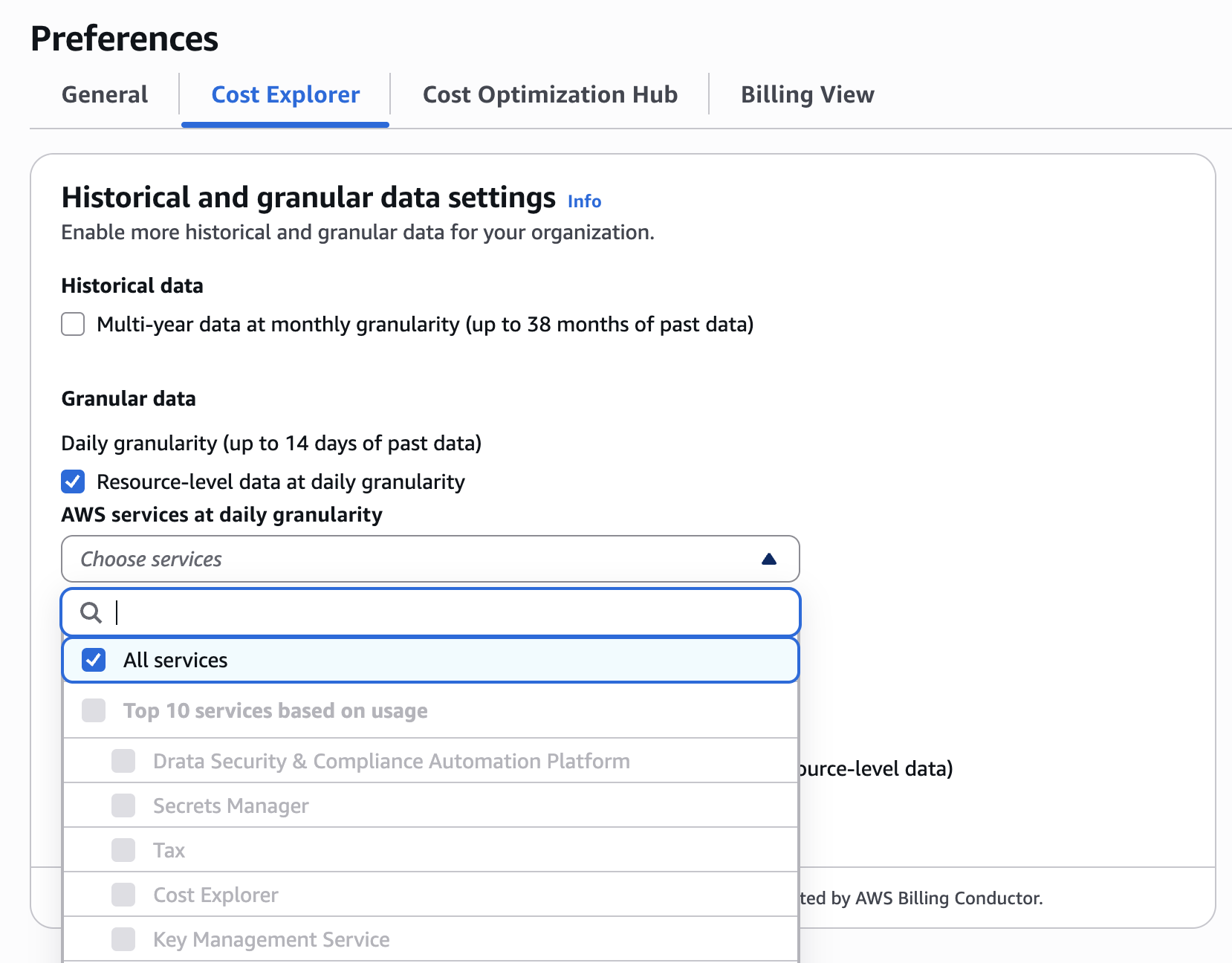
- Add a check next to the "Resource-level data at daily granularity" option (select All Resources)
- Click the "Choose Services" dropdown menu and add a checkmark to the "All Services" option at the top
Enabling Resource Explorer
Turn on Resource Explorer
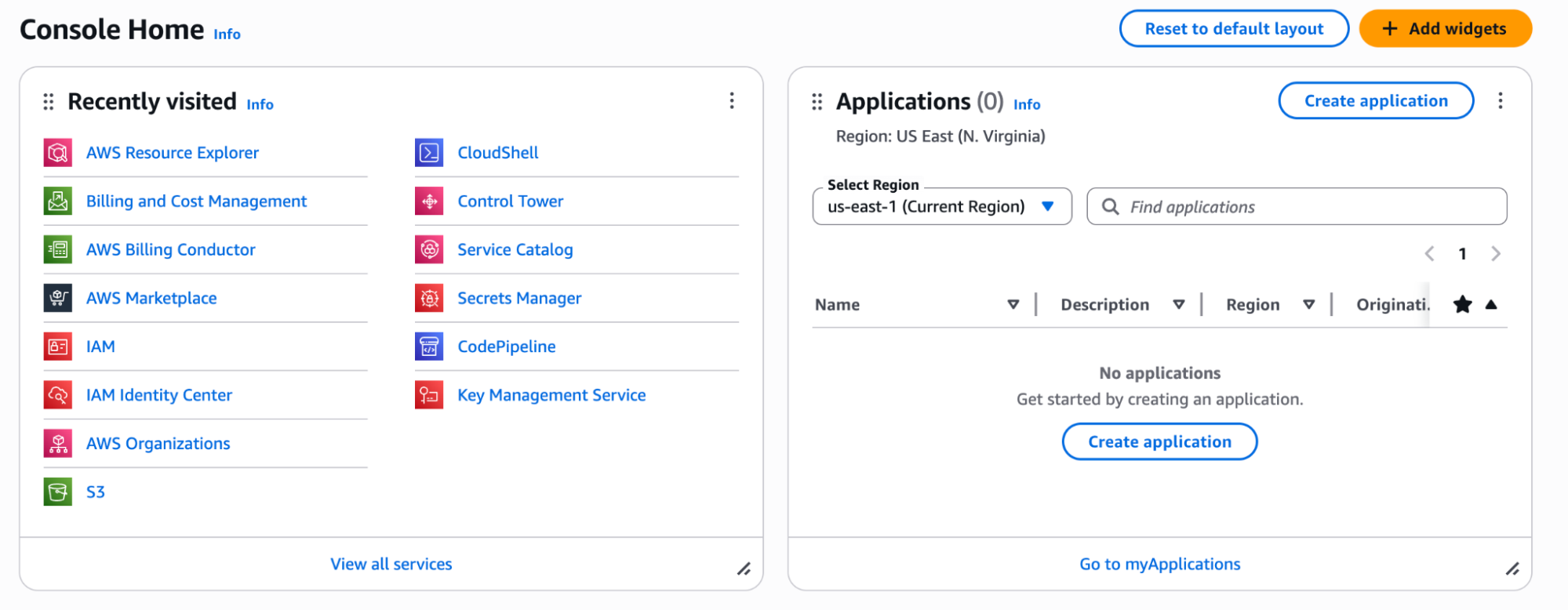
- From your Management account, go to the resource explorer, either from the AWS Console main page, or by going to https://resource-explorer.console.aws.amazon.com/resource-explorer
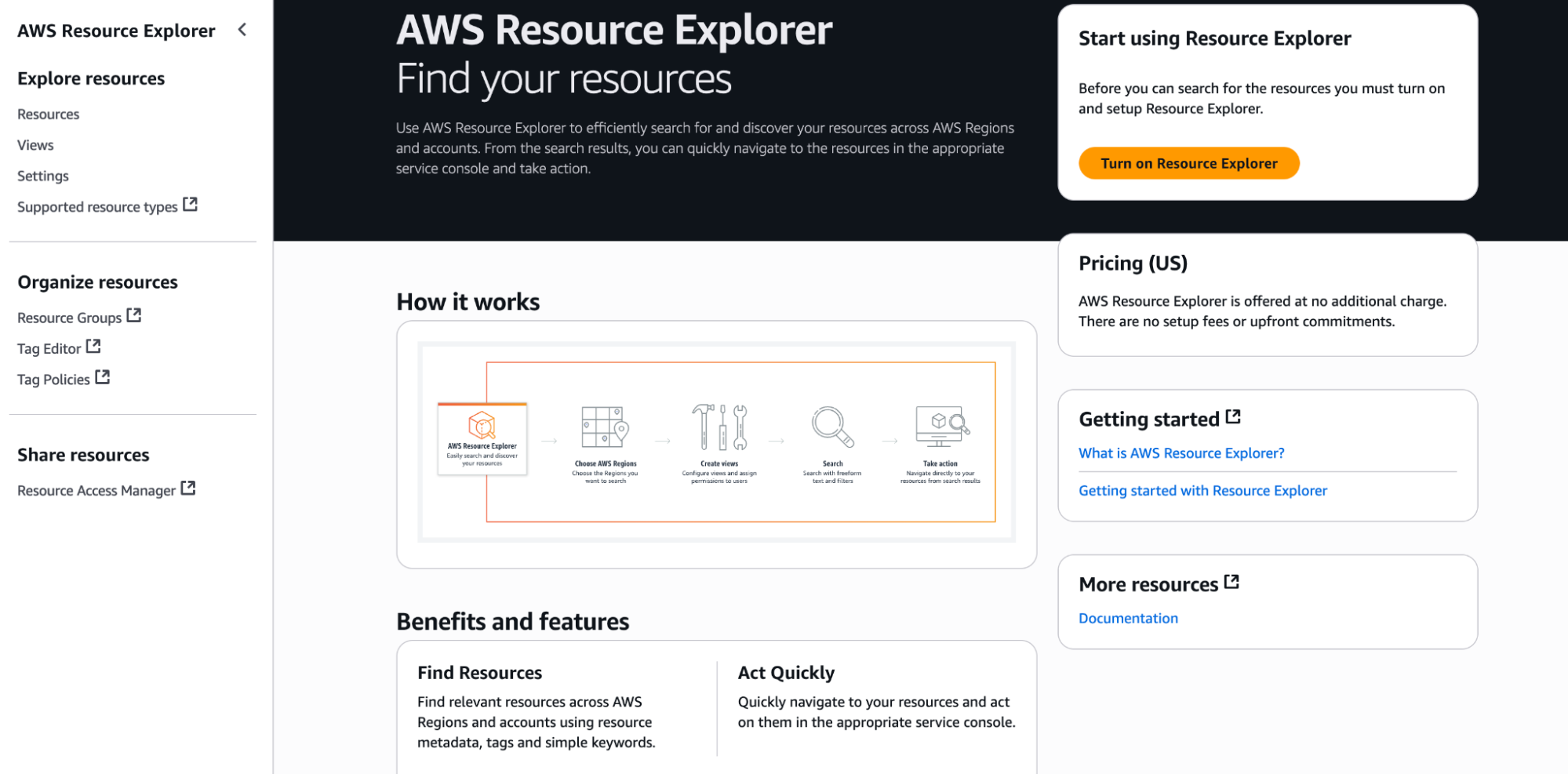
- Click the Turn On Resource Explorer button
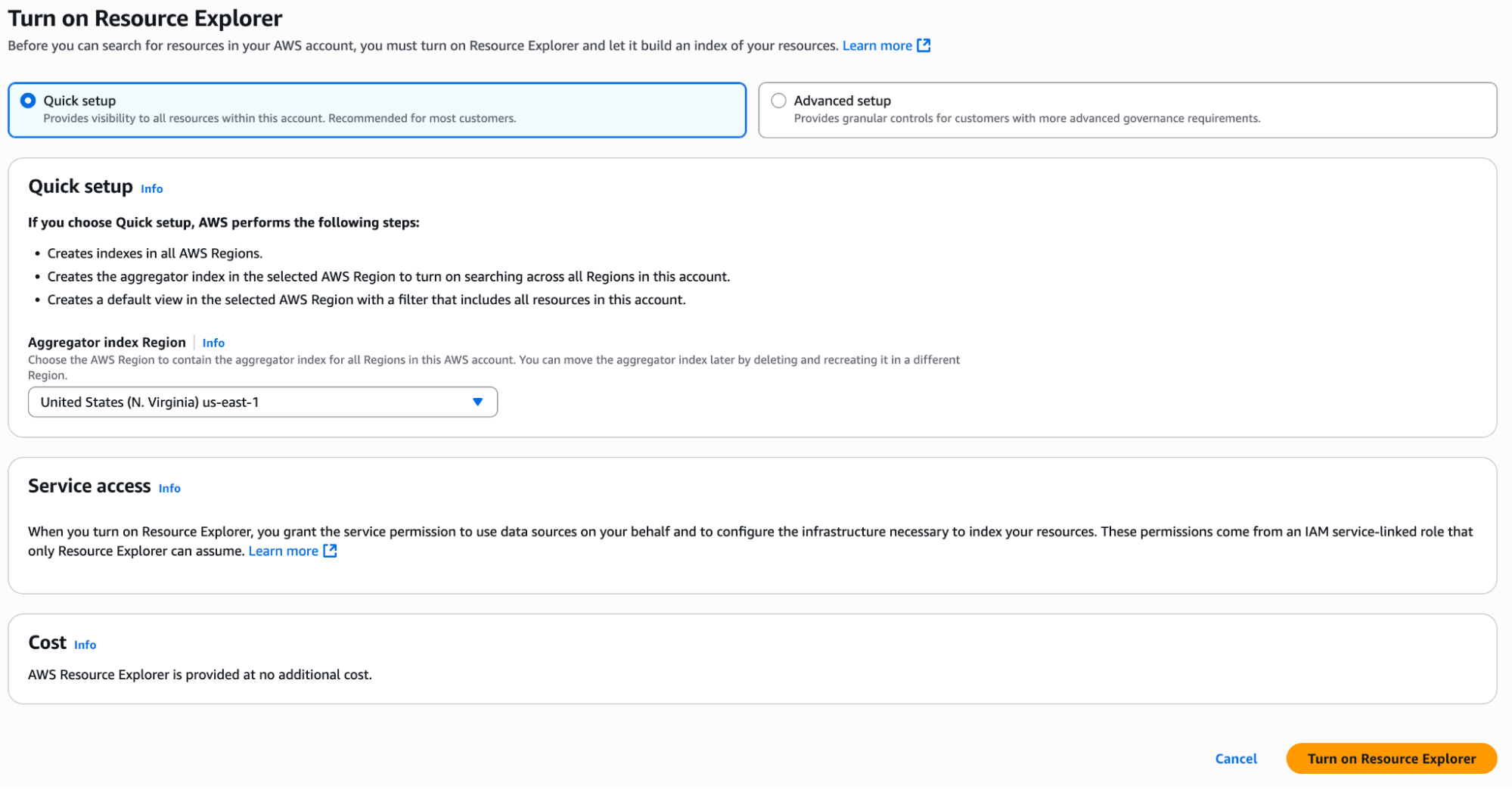
Configure and complete setup
- Use the Quick Setup, and select a region for the aggregated resources to live in, such as us-east-1. Then scroll to the bottom and click the Turn On Resource Explorer button.
- You'll see the indexes build, and then you are done!