Documentation
Everything you need to get started, integrate, and get the most out of Topogy.
Assign Roles to Service Account
Overview
In order to integrate your GCP org with Topogy, you will need to assign the service account the TopogyReadOnlyRole at the Organization level and you will need to assign the TopogyBigQueryJobRole to the project that stores your BigQuery billing dataset.
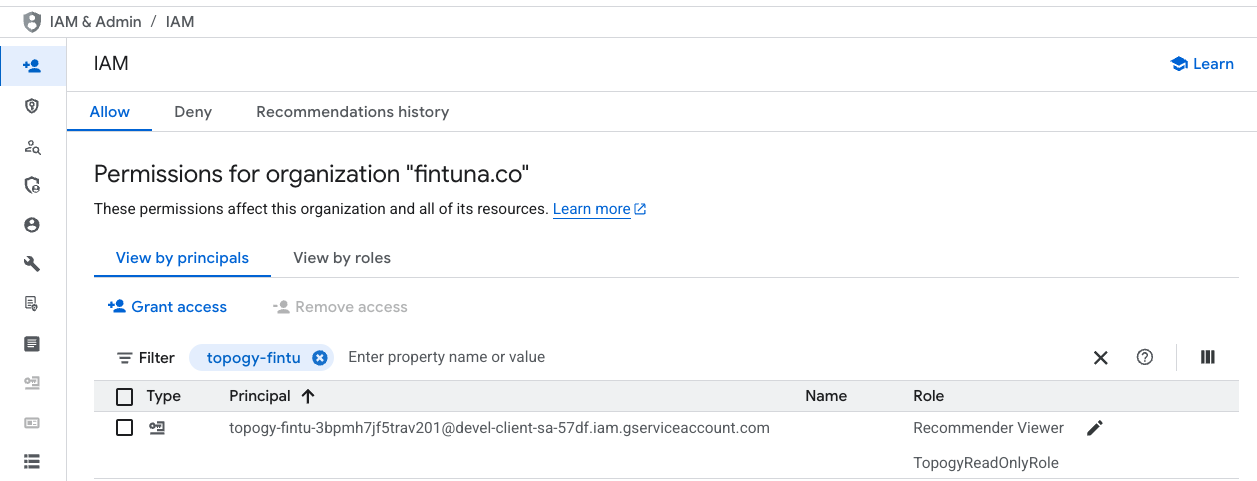
Assign the TopogyReadOnlyRole and Recommender Viewer roles to Service Account
In this first step, we will be assigning the "TopogyReadOnlyRole" and the "Recommender Viewer" roles to the service account at the organization level. You should have already created the required custom roles before coming to this step.
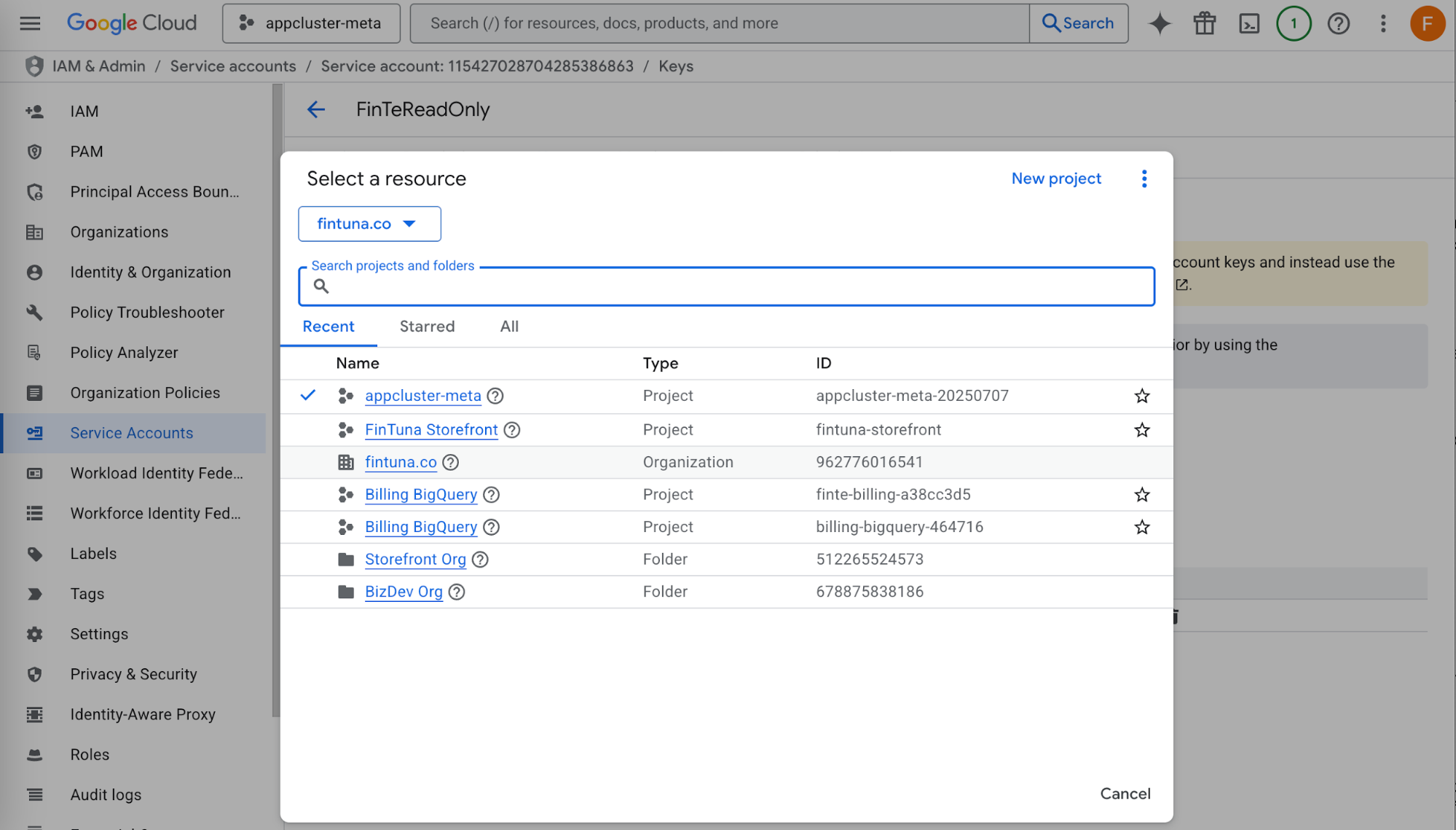
- Select your organization in the resource selector
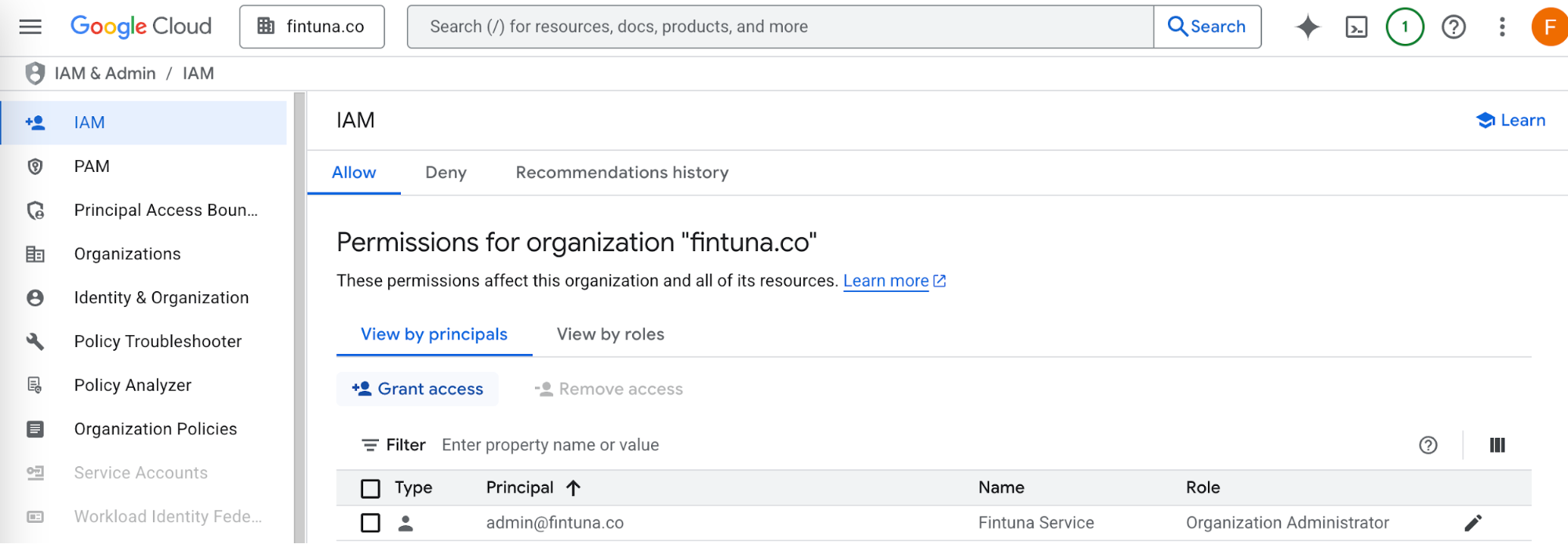
- Now select IAM & Admin -> IAM from the left side navigation menu, and within the permissions pane for your organization click the "+ Grant Access" button
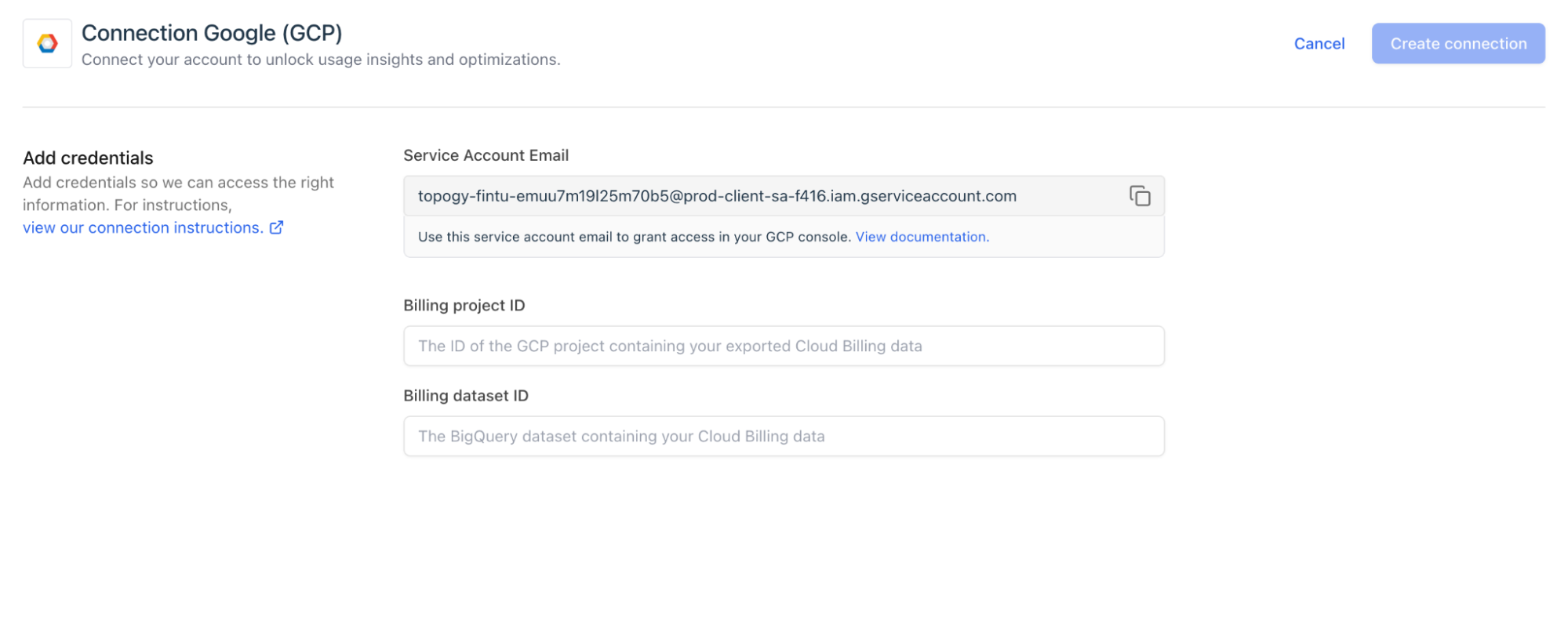
- Copy the GCP Service Account Email address from the Topogy application
- In the New principals field, paste the service account's id (obtained in previous step)
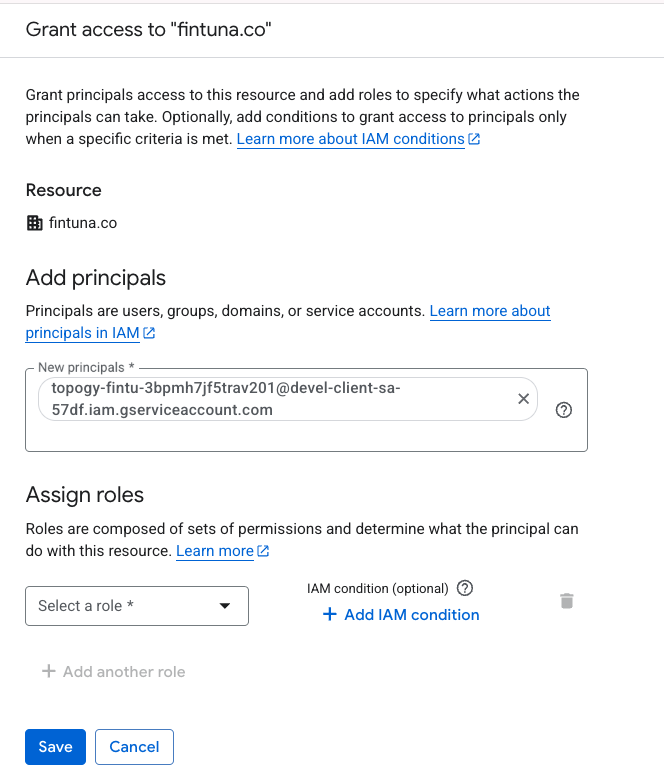
- Now click Select a role. Enter Topogy in the filter so you can select the TopogyReadOnlyRole
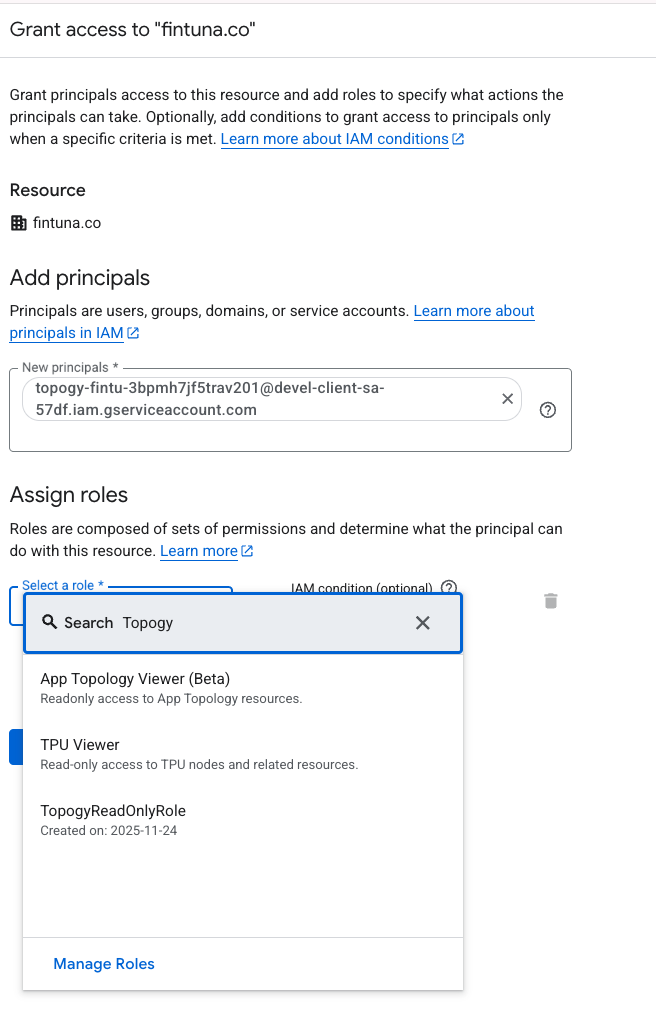
- Click "+ Add another role" link
- Type "Recommender Viewer" in the filter box
- Select the "Recommender Viewer" role
- Click the "Save" button
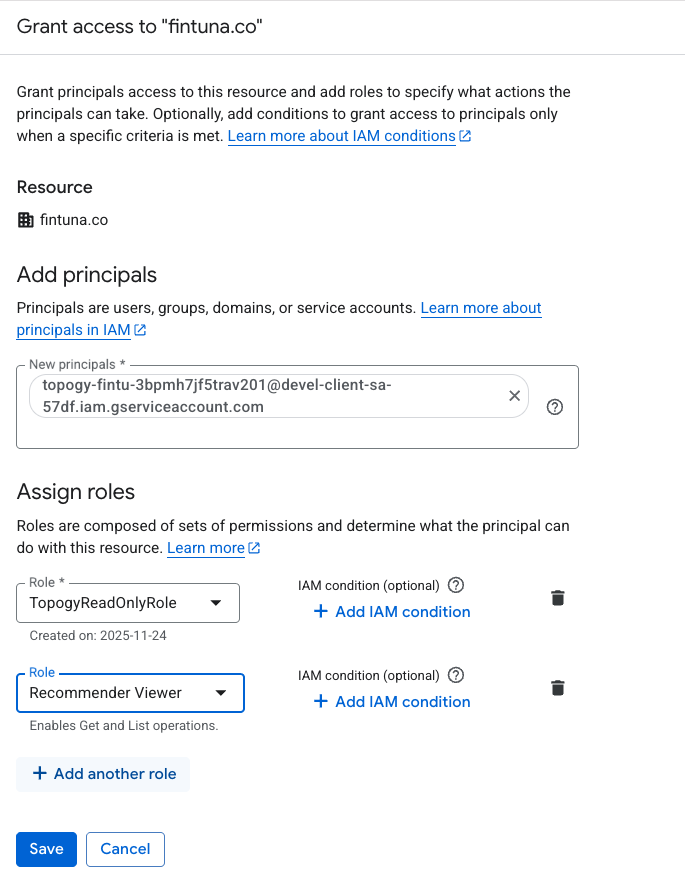
And you are finished adding a service account with the proper roles for Topogy!
Assign TopogyBigQueryJobsRole to Service Account
In this first step, we will be assigning the TopogyBigQueryJobsRole to the service account at the BigQuery billing project level. You should have already created the required custom roles before coming to this step.
- Select the project where you have your BigQuery dataset in the resource selector (it will be Billing BigQuery if you were following our directions)
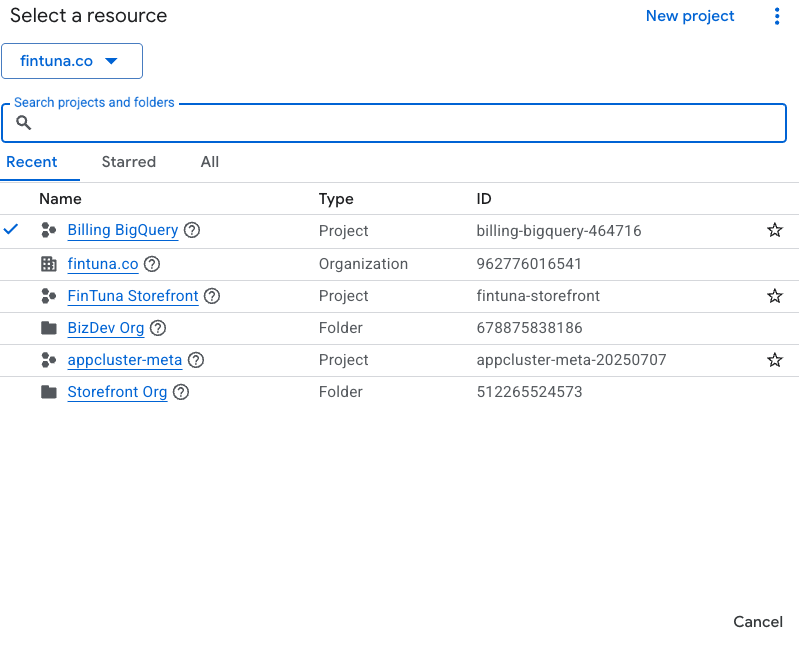
- Now select IAM & Admin -> IAM from the left side navigation menu, and within the permissions pane for your BigQuery billing project, click the "+ Grant Access" button
- In the New principals field, paste the service account's id (you should already have this - you can get it from the Topogy app)
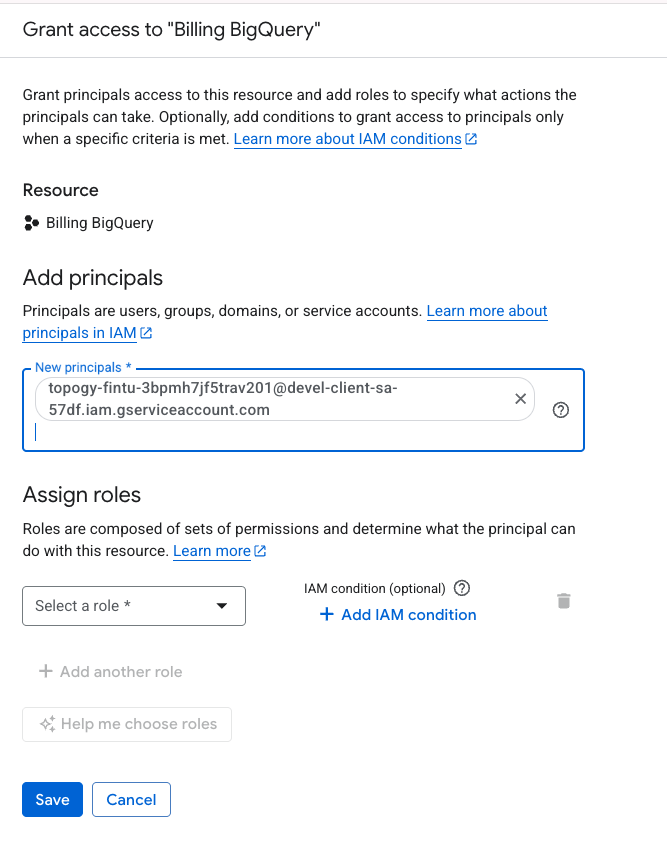
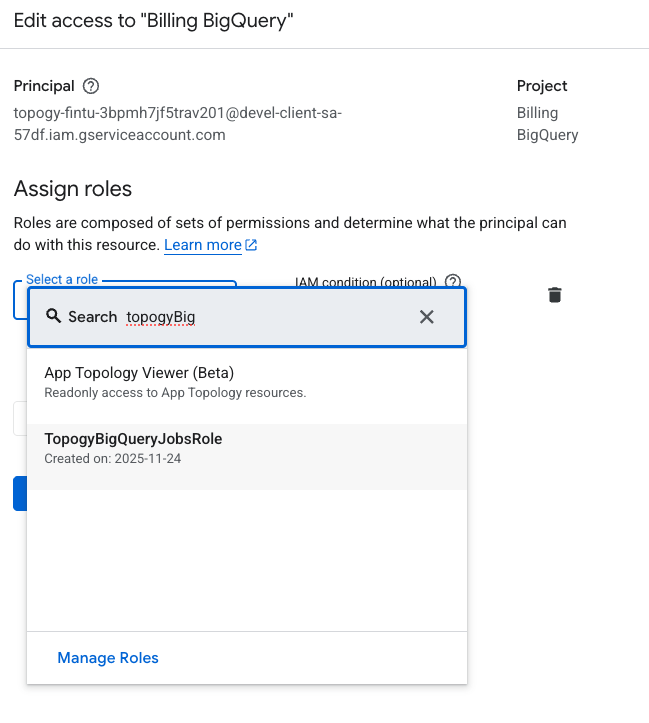
- Now click Select a role. Enter Topogy in the filter so you can select the TopogyBigQueryJobsRole
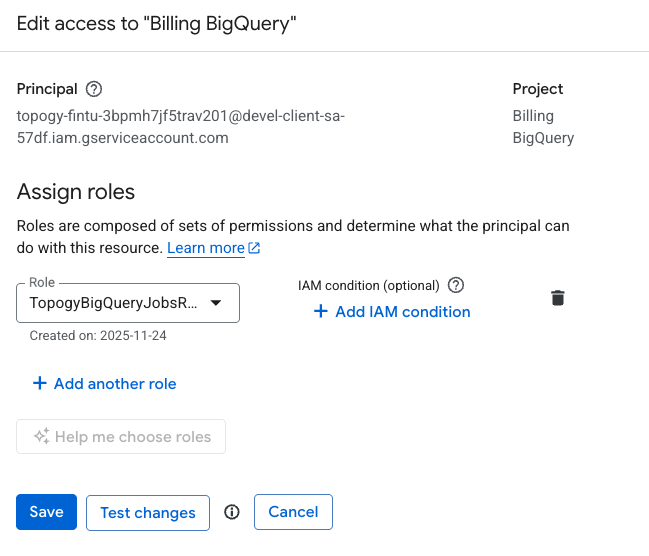
- Once you've added the custom role, click Save
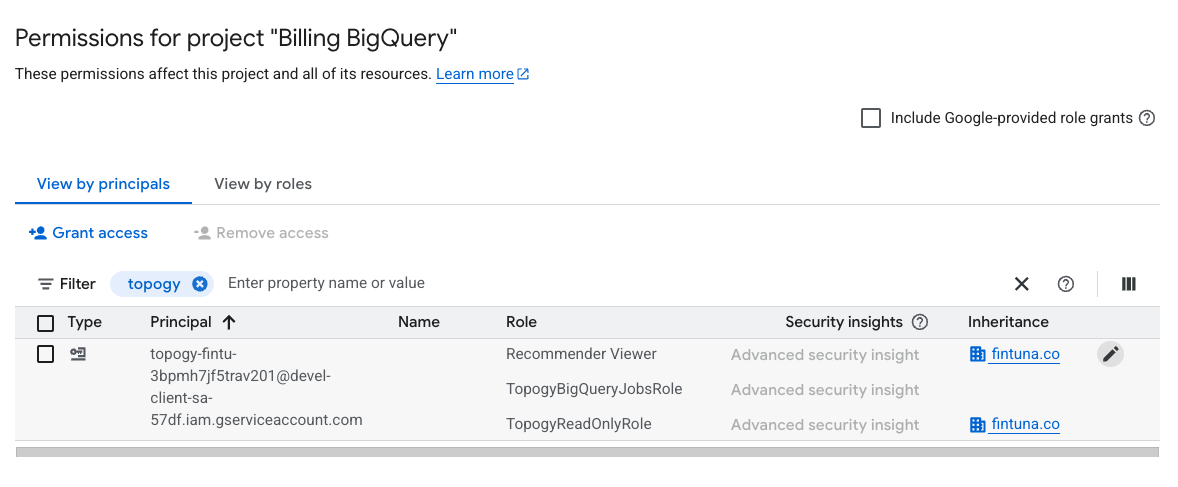
And you are finished adding a service account with the proper roles for Topogy!
Next step: Enable service APIs