Documentation
Everything you need to get started, integrate, and get the most out of Topogy.
Billing Export
Now that you have a project with a BigQuery instance and a dataset, you will need to enable export of billing data from your billing account(s) into this table.
Navigate to the Billing->Billing export in the GCP console. Ensure that the desired Billing Account is selected. The Billing export page opens for the selected billing account.
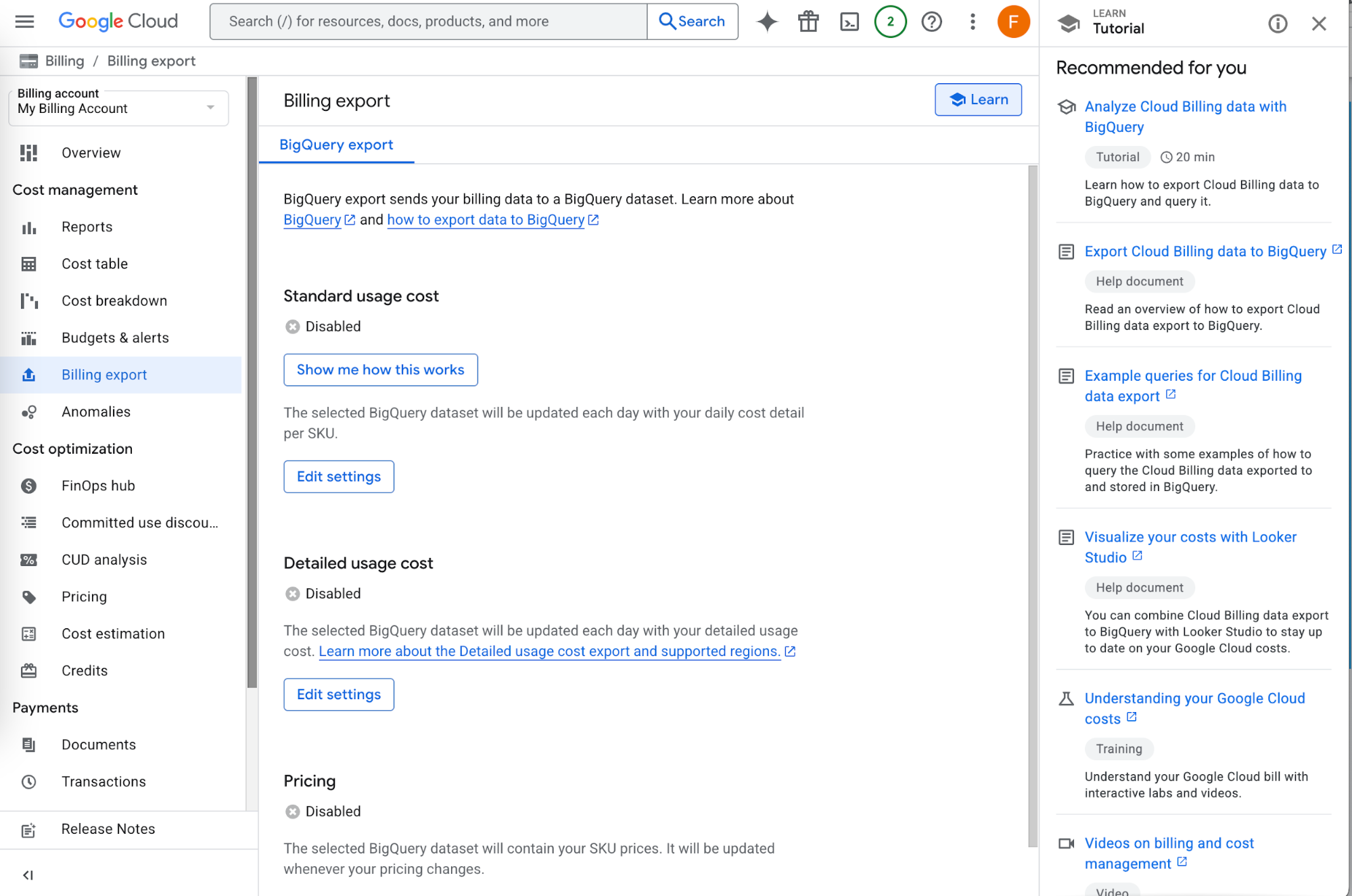
Standard usage cost, Detailed usage cost, Pricing Exports
There are four types of billing data you can export, however, the "Committed Use Discounts Export" has its own set of instructions. For each type ("Standard usage cost", "Detailed usage cost", and "Pricing"), click Edit Settings to open the settings page
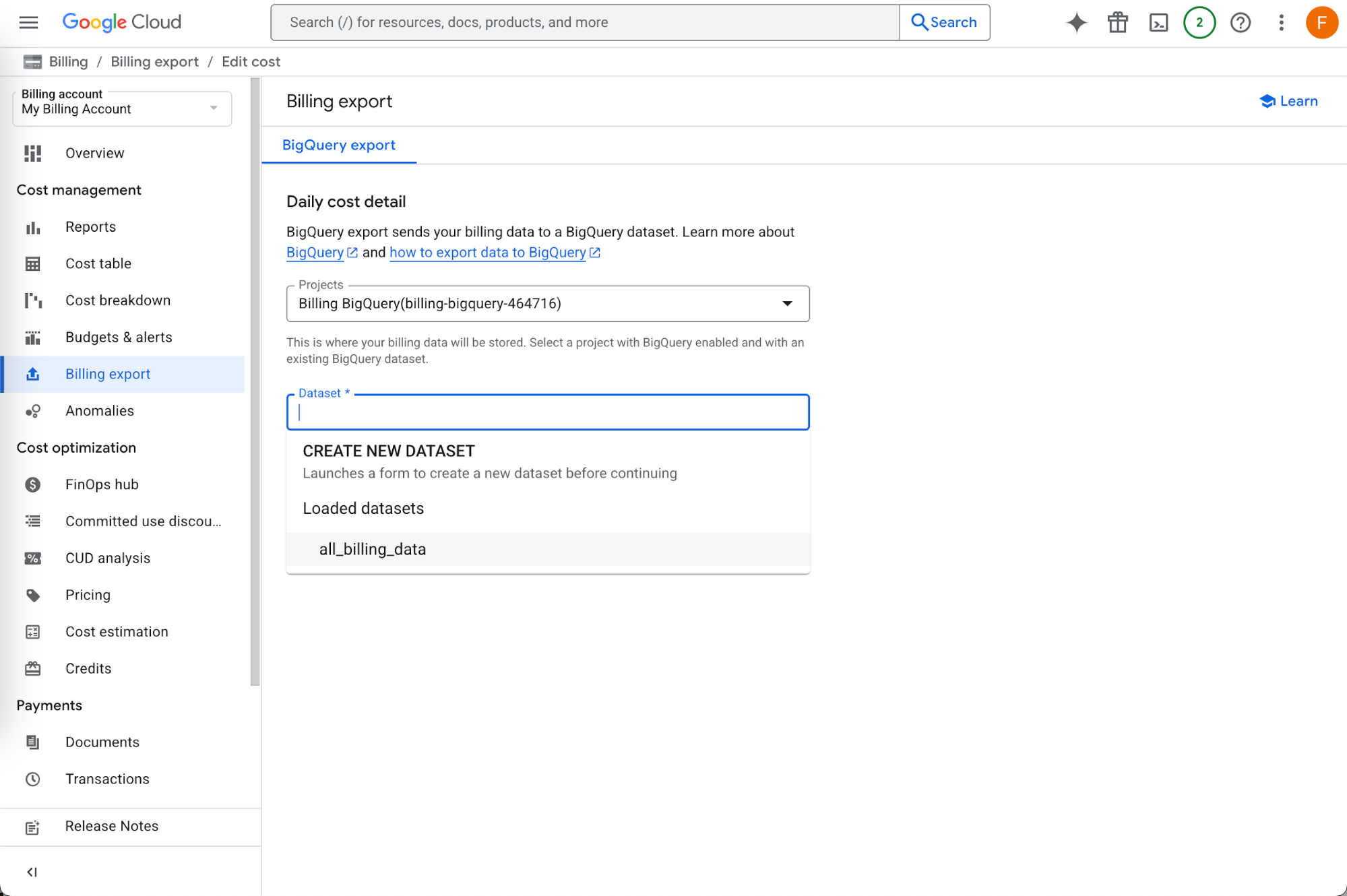
In the Projects entry, select the project name that you created for this, likely "Billing BigQuery" unless you used a different name
In the Dataset, select the dataset you created for this, likely "all_billing_data" unless you used a different name
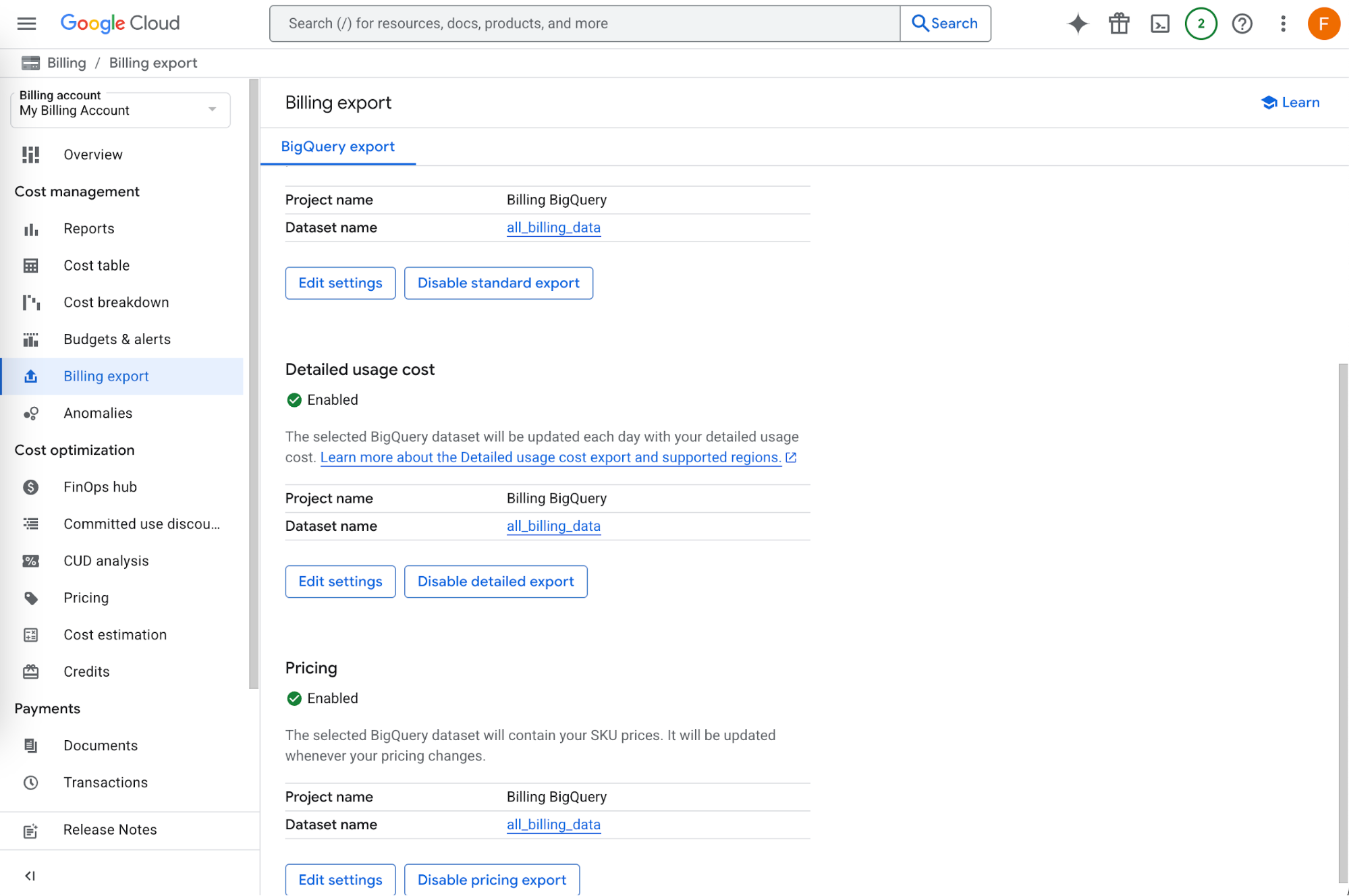
Click Save, and repeat for "Detailed usage cost" and "Pricing". When done, you should see all three enabled:
Committed Use Discounts Export
The "Committed Use Discounts Export" is new and currently in Preview mode. Enabling this export allows us to get information about any new spend-based CUDs (Committed Use Discounts) that you have purchased. The steps to enable this export is similar to the previous steps to enable the exports for the standard usage cost, detailed usage cost, and pricing exports, however, we need different instructions as you cannot export into an existing dataset, instead GCP will create the dataset using the name you provide in the configuration.
Open the CUD export settings
- Similar to the previous steps, click the "Edit CUD export" button to open the settings page
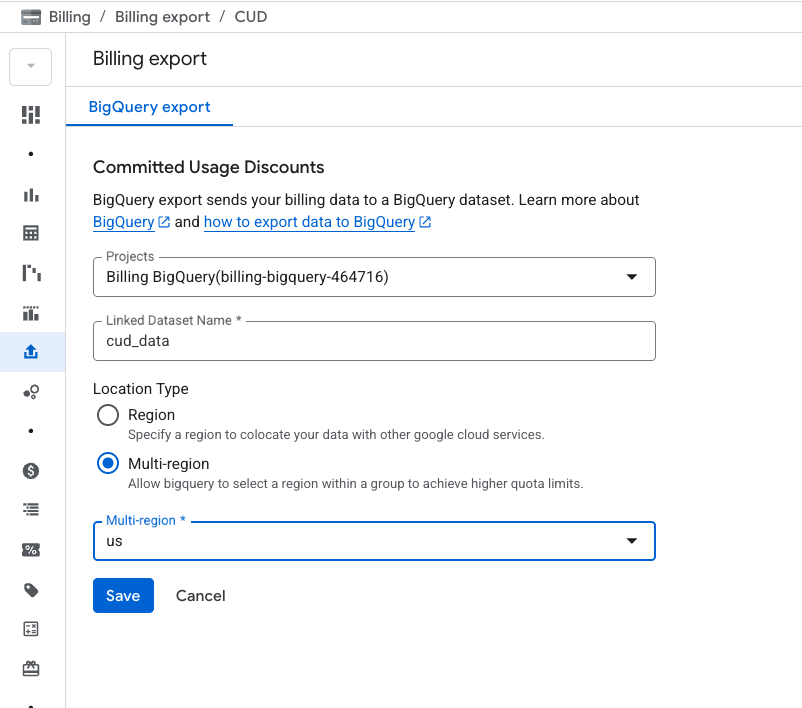
- In the Projects entry, select the project name that you created for this, likely "Billing BigQuery" unless you used a different name
Configure the dataset and location
- In the Dataset, enter the name of the Dataset that you would like GCP to create for this export (we used cud_data in the example - you will enter this name in the GCP integration configuration). You will get an error if you provide it the name of an existing dataset, so be sure the name you provide does not match an existing dataset.
- Select the "Multi-region" radio button for "Location Type"
- Select "us" for the Multi-region drop down
- Click Save
Next step: Grant external service account access to BigQuery dataset